
Last updated 12 Oct 2026
The app your support workers carry on every shift
The next step first, help in two seconds, and records that wait on the phone when the signal drops.
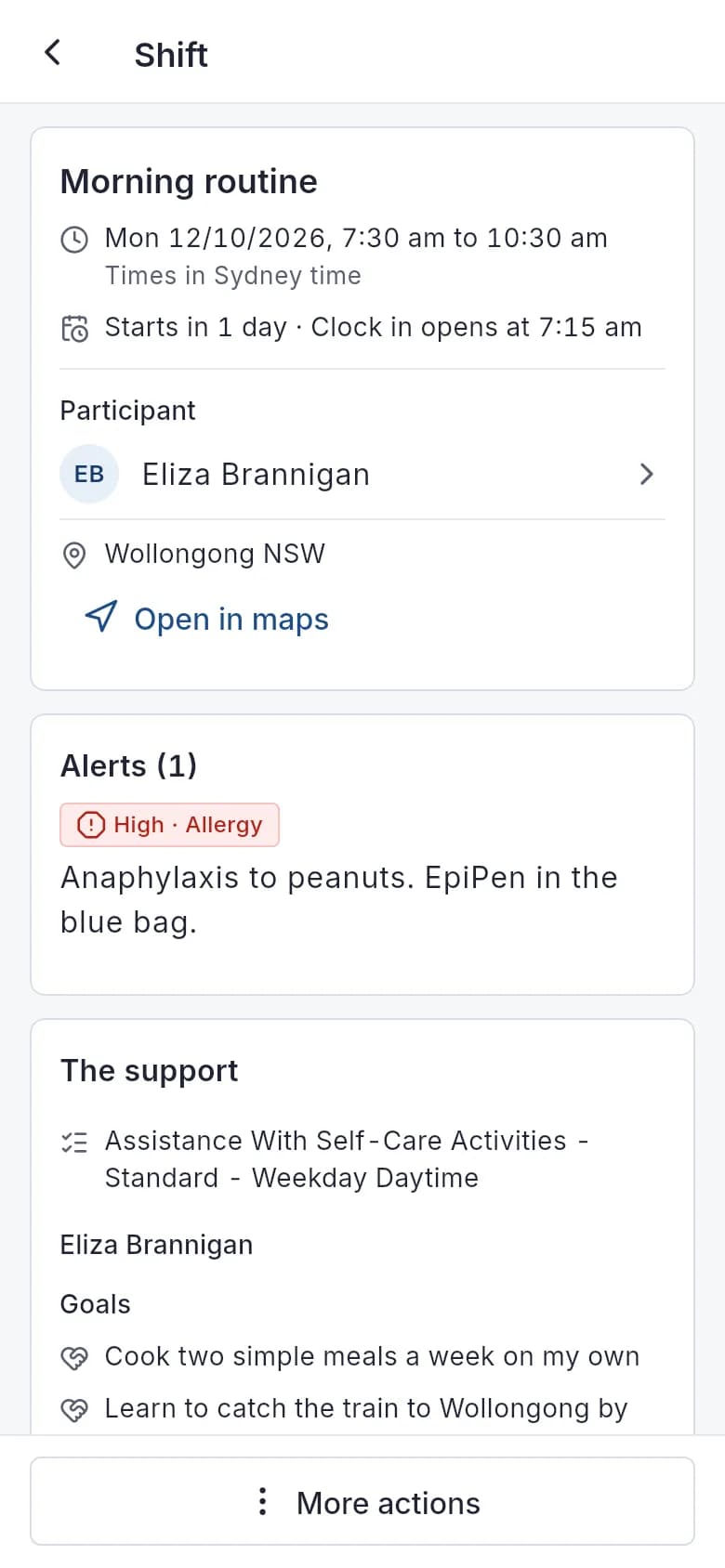
The Autonomy Care app shows support workers their next step on a Now card, with shifts, clock-in, notes with dictation, medication, incident reports, tasks and an SOS button that can send a silent alert. Clock events, notes, incident reports, help requests and task ticks save without signal and send later. Two-step sign-in is supported, and your organisation can require it.
What can workers do in the app?
Now card
The top of Today shows one main action: read the handover and clock in, the next task or medicine due, the note you owe, or Clock out.
Shifts, open shifts and swaps
See today's and upcoming shifts. Claim open shifts, offer or swap a shift, say you can't work it, set your availability and add shifts to your own calendar.
Shifts, open shifts and swapsClock in and out
Location is read once at each clock event when geofencing is on. Clock-out shows only the steps that apply: notes, signature, handover.
Clock in and outNotes in less time
Prompts for What we did, How they were, Goals and Follow-up, quick notes during the shift, dictation, and drafts saved every 5 seconds.
Notes in less timeMedication
See doses due now, upcoming and PRN. Record given, self-administered, refused, withheld, missed or not required, with double check and witness steps.
MedicationIncident reports
Starts with "Is anyone hurt or in danger now?", then the type, restrictive practice, harm, a body map, photos and dictation.
Incident reportsSOS and check-ins
Tap SOS for Call 000 and on-call, or hold it for 2 seconds for a silent alert. Set your own check-in timer on lone shifts.
SOS and check-insSearch and notifications
Search participants, shifts, notes, messages and documents. Filter notifications by Safety, Action needed, Roster and Messages.
Your own records
Tasks, messages, forms, training, policies, credentials, leave, expenses and kilometres, and your pay and timesheets.
Your own records
What does the Now card show?
The Now card sits at the top of Today and shows one main action for where the worker is in their day:
- On shift: a live timer, the next task, the next medicine due, Quick note and Clock out. It shows as overdue once the shift passes its end time.
- Time to clock in: the participant's alerts and risks, Read the handover, and Clock in.
- A note is owed: a reminder with the deadline.
- Later today: a countdown, Open in maps and Running late.
- Done for today, or no shift today, with Browse shifts to find open shifts.
Below it, Today shows a strip of the day's shifts and a "Needs your attention" list: unread handovers, notes owed, roster changes and unread messages.
What works without signal, and what doesn't?
These are saved on the phone and sent when it reconnects, each one only once:
- Clock-ins and clock-outs, marked "recorded offline". The server accepts them within 12 hours.
- Progress notes with photos, and note corrections.
- Incident reports with photos.
- Help requests, saved with the time SOS was pressed.
- "I'm OK" answers, "Got it" on shift changes, and shift task ticks.
A banner shows when something is waiting, and a "Waiting to send" page lists each item. If the server refuses one, it is kept with the reason. Today shows the copy kept on the phone (up to 18 hours old), and search works on your participants and the next two weeks' shifts. That copy is cleared when you sign out.
Recording medication, sending messages, forms, leave and expense claims need a connection. They aren't saved offline.
How does SOS work?
SOS sits in the header of every signed-in screen. Tap it to open Ask for help, with Call 000 first and Call on call. Hold it for 2 seconds to send a silent alert: on-call is told and asked not to call you. Screen reader users have a "Send a silent alert" action.
With no signal, the help request is saved with the time you pressed it and sends itself when the phone reconnects. Call 000, Call on call and a ready-to-send text to on-call stay on the screen. "I'm safe now" closes the request, with a reason.
On a shift you can also set your own check-in timer, from 30 minutes to 4 hours, or turn it off. If you miss a check-in, the app asks "Are you OK?" and on-call is told.
When does the app use my location?
Only at these moments:
- Once at clock-in and once at clock-out, when your organisation uses geofencing.
- Once when you check in or answer "Are you OK?", if you allow it.
- While you have a help request open: shared with on-call for up to 30 minutes, only while the app is open. Tap "Stop sharing my location" to stop it sooner.
- If you tap "use my location" for the end of a trip in an expense claim.
The app explains why before the phone asks for permission. There is no background or continuous tracking.
How do quick notes, prompts and dictation work?
During the shift, add a quick note from the Now card: one line, typed or dictated, with the time added, such as "9:30 am: Walked to the park." Quick notes start the progress note; they aren't a separate record.
The note editor asks What we did, How they were, Goals and Follow-up. It joins the answers under headings, adds a title, and adds the shift tasks you ticked, such as "Done: Shower support." Drafts save on the phone and on the server every 5 seconds, so you can finish on another phone. The note coach checklist shows what's missing before you send.
Dictation uses your phone's own speech recognition, in Australian English. Autonomy Care doesn't record or keep the audio, but Apple or Google may process it, depending on your phone.
How do incident reports and medication work in the app?
An incident report starts with "Is anyone hurt or in danger now?" If yes, Call 000 and Call on call move to the top. Then you pick the type, answer whether a restrictive practice was used and about harm, and can add a body map, photos and a dictated description. If the incident is in a 24-hour reportable category, the app says your coordinator has 24 hours to report it, and the on-call coordinator is told.
For medication, you see doses due now, upcoming doses and PRN medicines. Record given, self-administered, refused, withheld, missed or not required (with a reason). After a refused, withheld or missed dose, the app tells you who was told and offers Call on call and Call 000.
How do notifications and search work?
The notification centre filters by All, Safety, Action needed, Roster and Messages, with unread counts. Swipe to mark one done or snooze it for 1 hour, 3 hours or until tomorrow. Safety notifications can't be snoozed, and an unread one shows as a banner at the top.
Search on Today covers participants, shifts, notes, messages and documents, with recent searches. Participant results show alert chips and a Call button. Previews never show note or message text.
How is information protected on the phone?
Two-step sign-in is supported, and your organisation can require it. Workers can lock the app with the phone's biometrics, and sign-in tokens are kept in the phone's secure storage. Push notifications on the lock screen don't name participants. Drafts are cleared when another worker signs in on the same phone.
Workers see care information only, not plans or funding, and a participant's NDIS number stays hidden until they tap Show. Shift swaps show colleagues' first names only.
Is the app accessible?
The app follows the phone's light or dark mode, uses large touch targets, is tested with text at 200% size, honours Reduce motion and has screen reader labels. Its colours are checked against WCAG 2.2 AA contrast in automated tests.
How do workers get the app?
The app is coming to app stores. Until then, your organisation tells workers how to get it and sets up their accounts. There's no sign-up for workers.
Inside the app
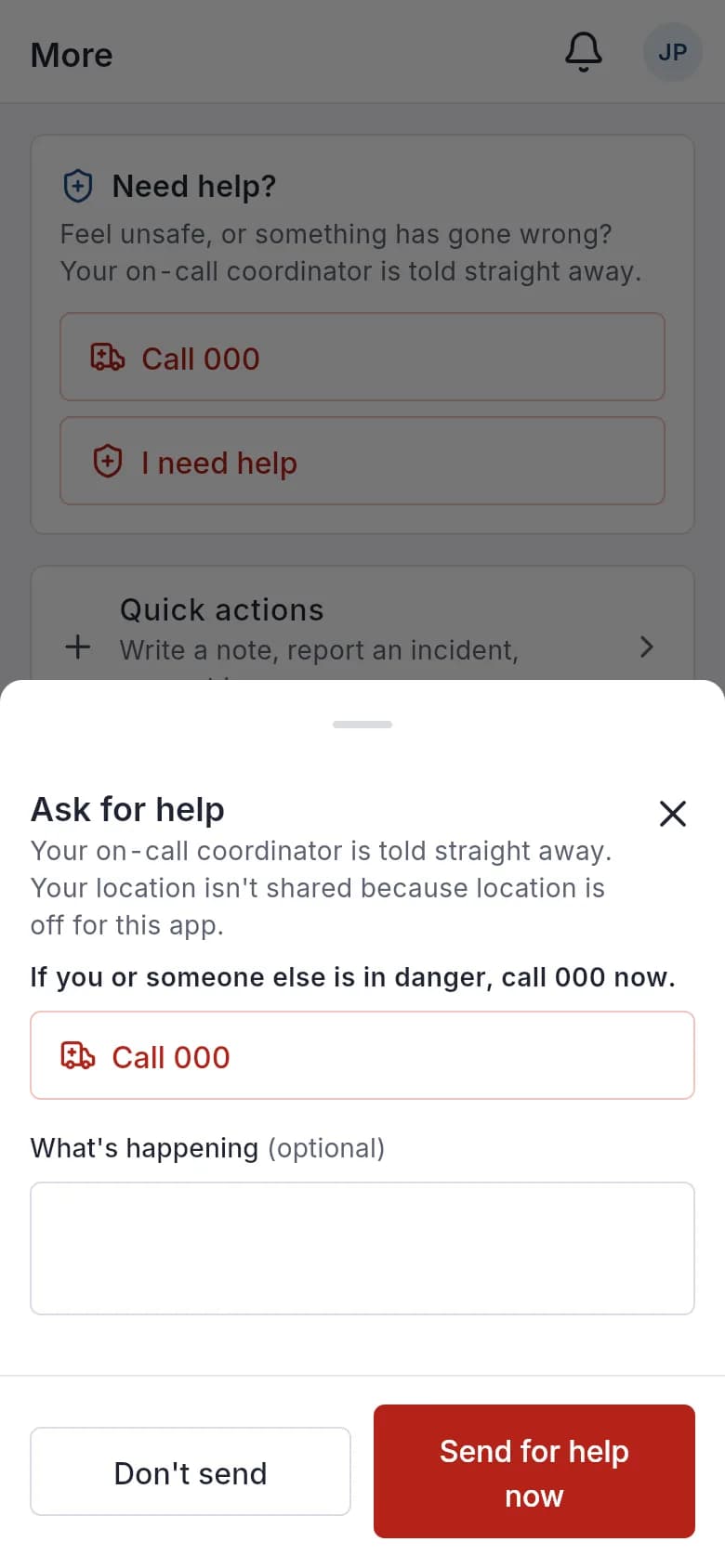
Ask for help, with Call 000 first. 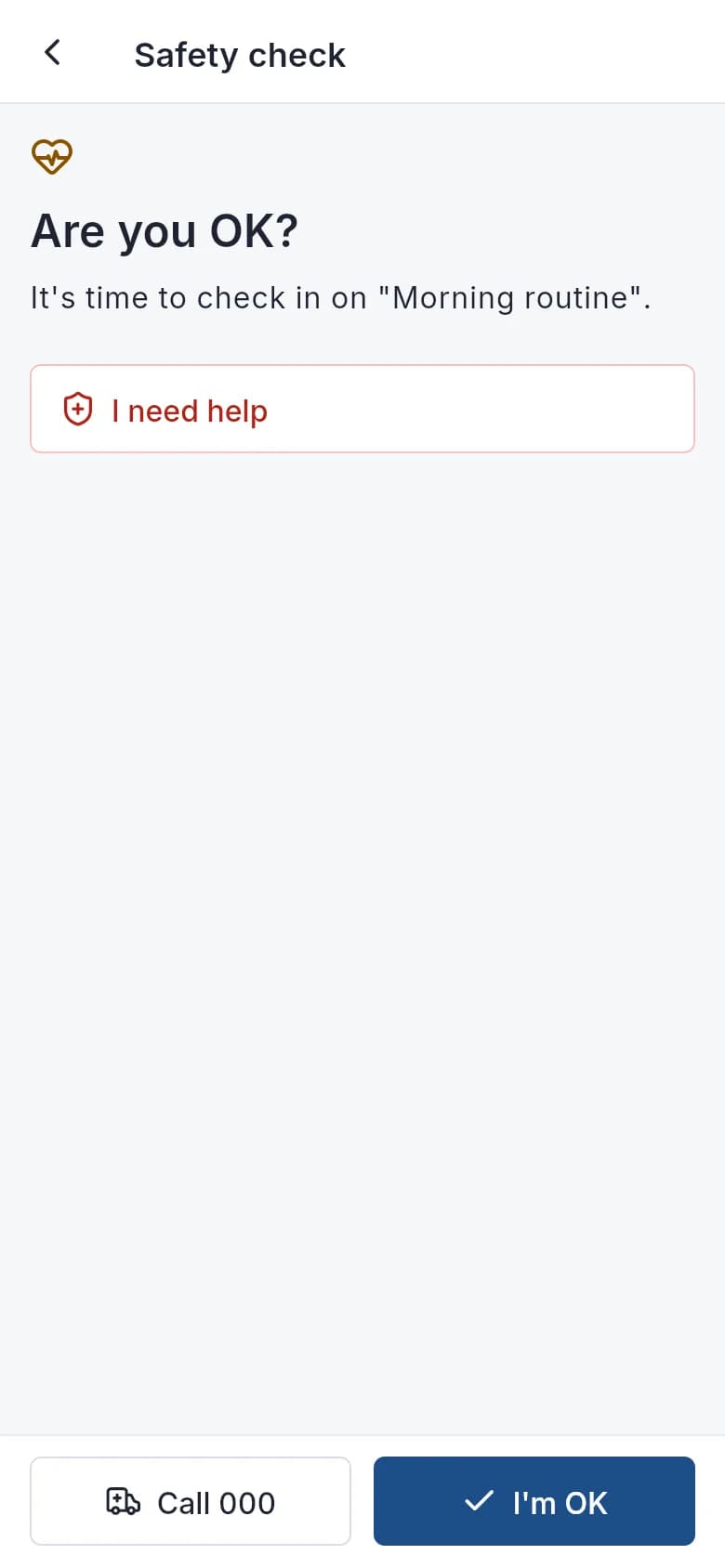
An "Are you OK?" check when a shift runs over. 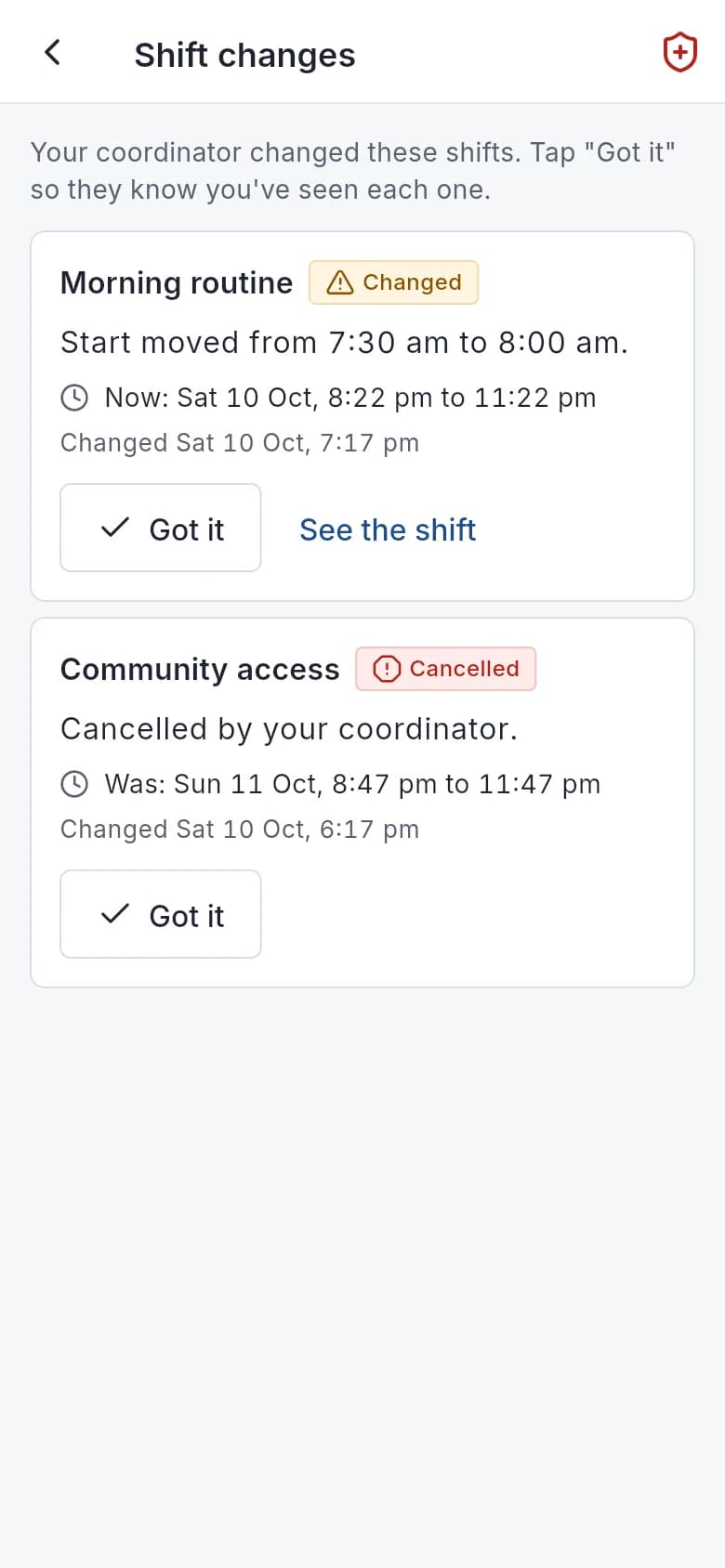
Shift changes, confirmed with Got it. 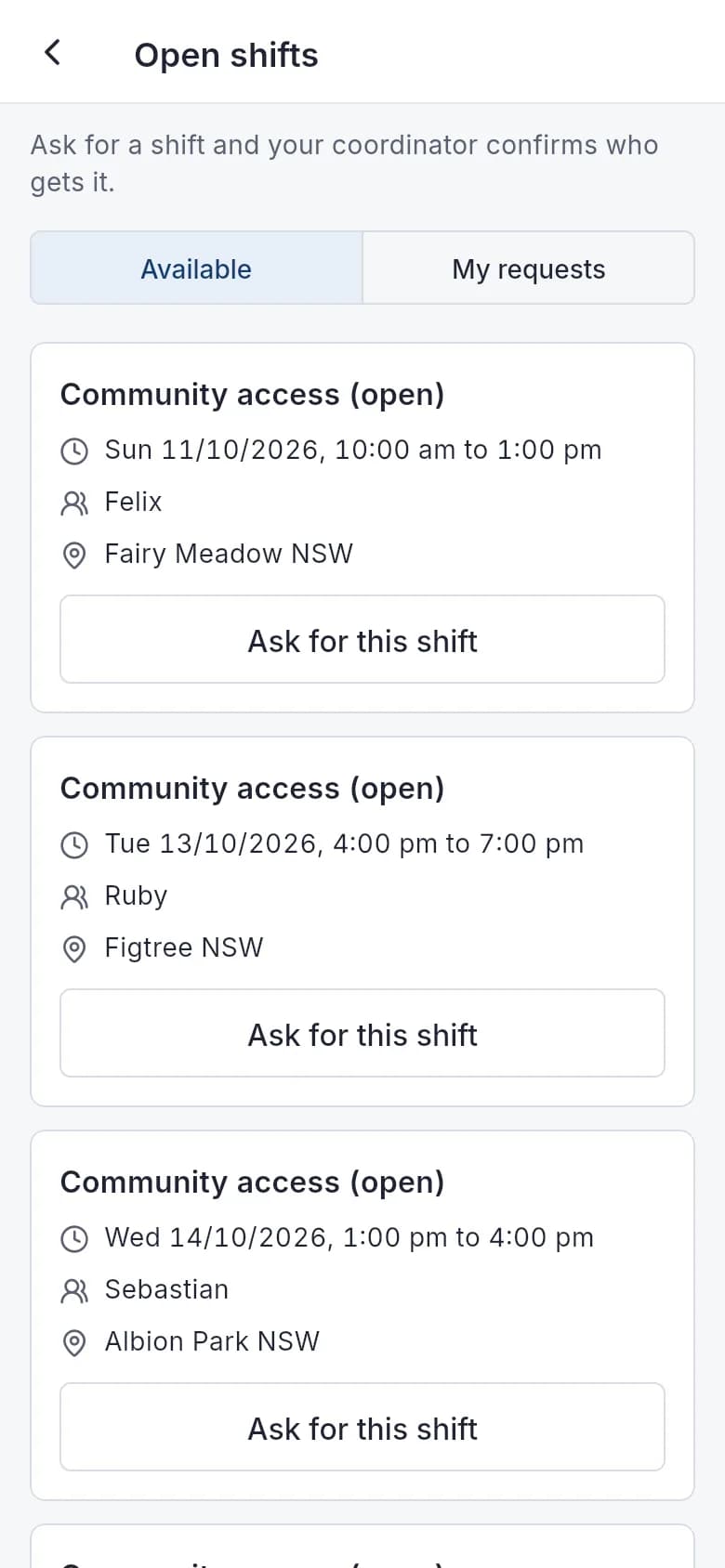
Open shifts you're eligible for. 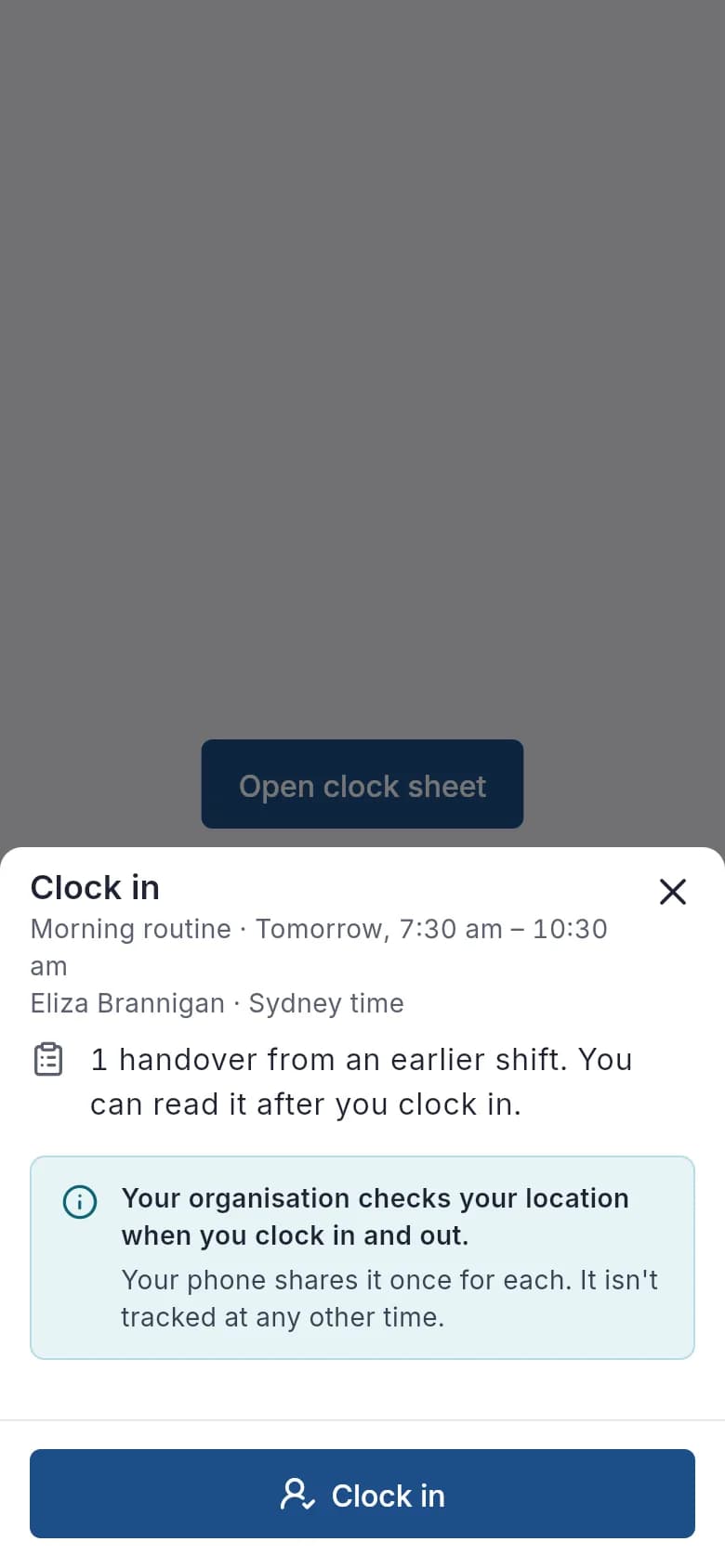
Clock in, with the location check explained. 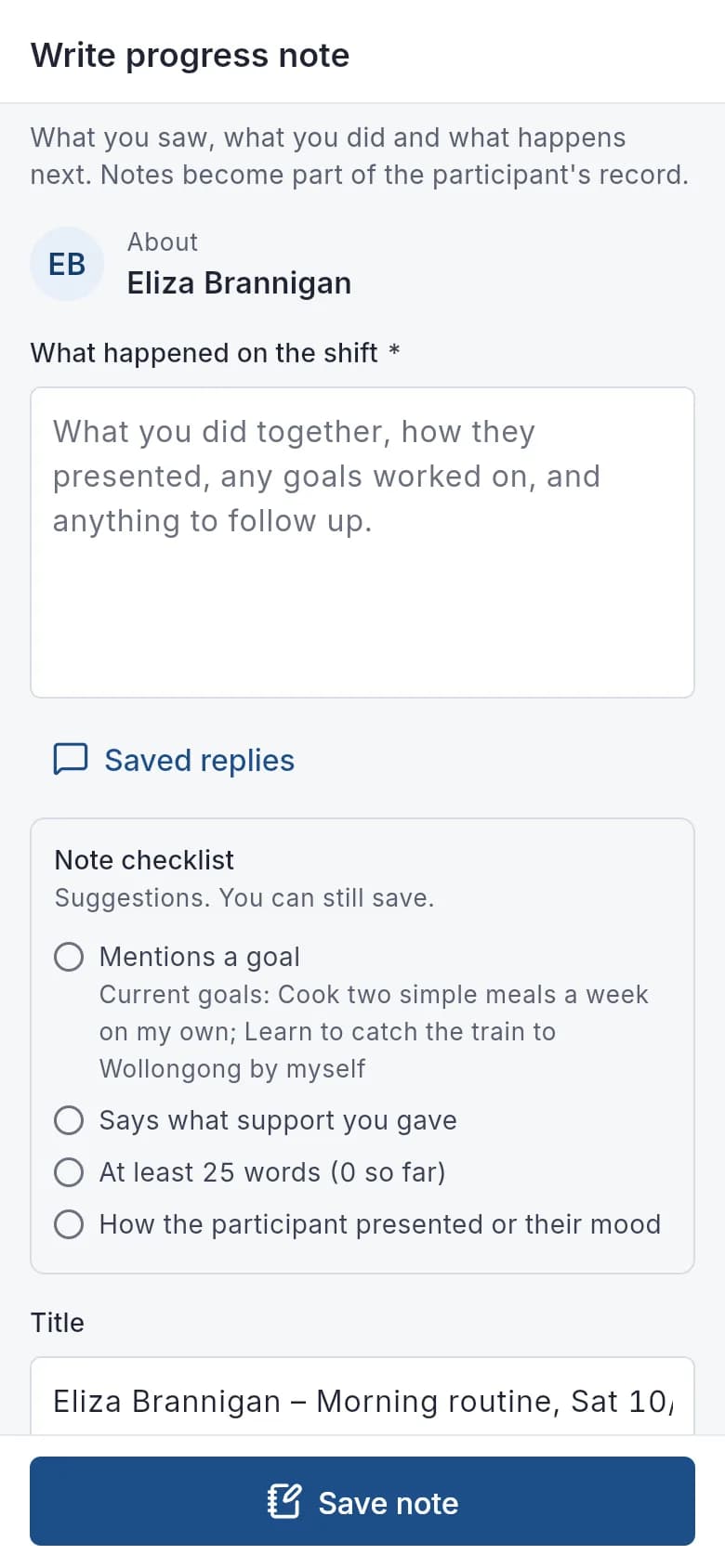
The progress note checklist. 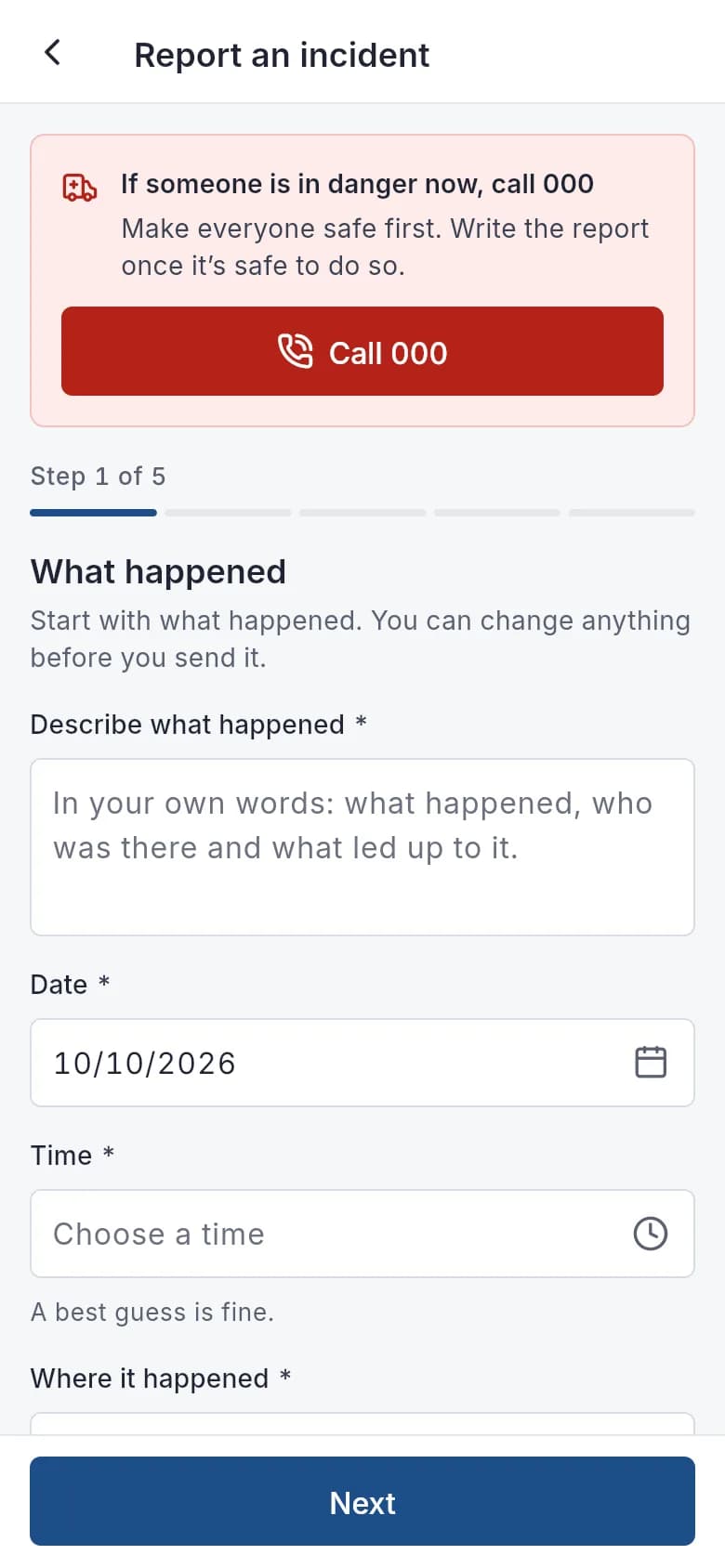
Incident reports start with safety. 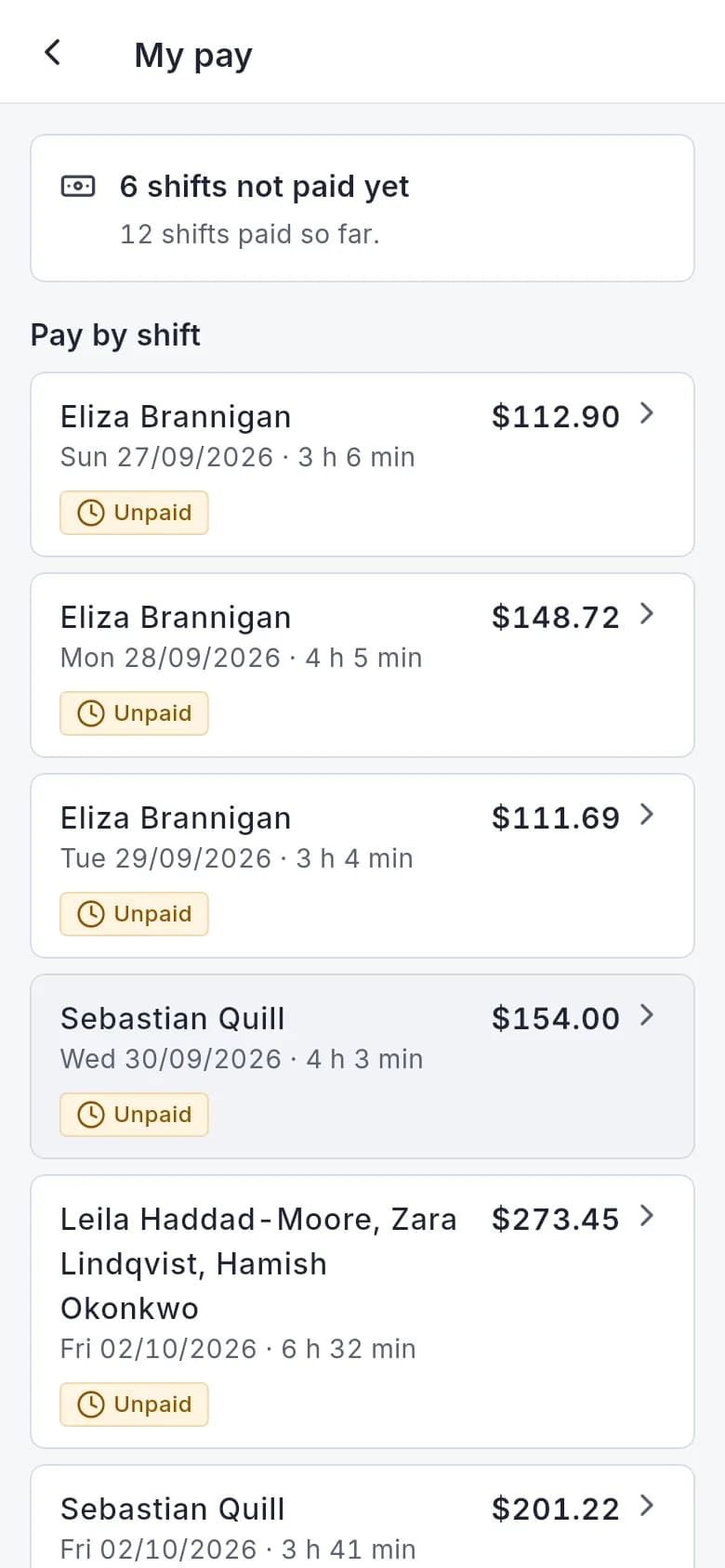
Pay for each shift.
What it does and doesn't do
It does
- Shows the next step on a Now card, with shifts, open shifts and swaps
- Saves clock events, notes, incident reports, help requests and task ticks without signal and sends them when it reconnects (clock events within 12 hours)
- Puts an SOS button on every signed-in screen; holding it for 2 seconds sends a silent alert
- Shares location with on-call while a help request is open, for up to 30 minutes, and you can stop it
- Supports dictation using the phone's own speech recognition
- Sends push notifications without participant names
It doesn't
- Doesn't track location in the background. Location is sent only at clock events, check-ins, and while you ask for help
- Doesn't save medication records, messages, leave or expense claims without signal
- Doesn't support single sign-on; workers use a password, with two-step sign-in if it is turned on
- Doesn't finish every form; file fields, look-ups and signing are done on the web
- Isn't a family app; families use the Family portal in a browser
Frequently asked questions
Does it work on phones for support workers?
Yes. Support workers use the Autonomy Care mobile app for shifts, clock-in, notes, medication, incidents and safety alerts.
Does the mobile app work without signal?
Partly. Clock-ins and clock-outs, progress notes with photos, note corrections, incident reports with photos, help requests, "I'm OK" answers, "Got it" on shift changes and task ticks are saved on the phone and sent once when it reconnects. Clock events must reach the server within 12 hours. Recording medication, messages, forms, leave and expense claims need a connection.
Do notifications show participant names on the lock screen?
No. Push notifications show a general message only, and the app can be locked with the phone's biometrics.
Does it use GPS location?
Only at set moments: once at clock-in and clock-out when your organisation uses geofencing, when a worker checks in or answers "Are you OK?", and while a help request is open. During a help request, the location is shared with on-call for up to 30 minutes, only while the app is open, and the worker can stop it. A worker can also use their location for a trip in an expense claim. There is no background or continuous tracking.
See it with your own rosters and plans
Get started, or book a demo and we will walk you through it with your questions.