
Last updated 12 Oct 2026
Module
Worker safety
Safety tools for support workers on lone shifts
Many support workers work alone in homes and the community. In the Autonomy Care app, an SOS button sits on every signed-in screen: tap it to call 000 or on-call, or hold it for 2 seconds to send a silent alert. Welfare checks, a check-in timer the worker sets, running-late notices and shift change acknowledgements cover the rest.
Part of Rostering and service delivery. Used by SIL providers.
How do welfare checks work?
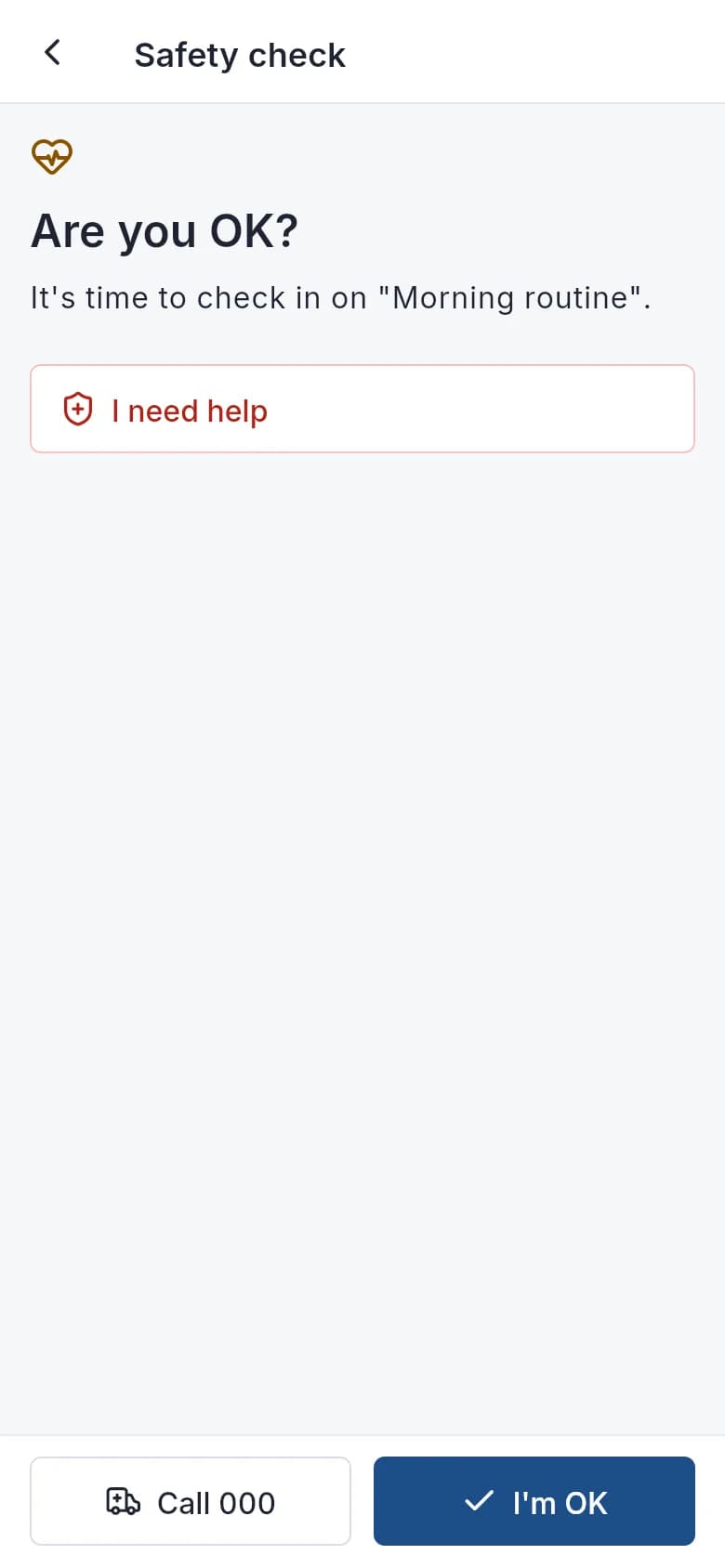
If a worker is still clocked in after the rostered end (30 minutes by default), or misses a check-in, the app shows a full-screen "Are you OK?" with one "I'm OK" button. The prompt is also sent by push and by text message. Text messages go through the SMS gateway Autonomy Care runs for the whole platform, so you don't need your own SMS account.
If the worker doesn't answer, on-call staff are alerted with the last known location.
What happens when a worker raises an alert?
Tapping SOS opens Ask for help, with Call 000 first and Call on call. Sending the request alerts on-call contacts at once on every channel, ignoring quiet hours. Holding SOS for 2 seconds sends a silent alert, and the worker can choose "I can't talk. Ask on-call not to call me." Screen reader users have a "Send a silent alert" action.
While the request is open, the worker's location is shared with on-call for up to 30 minutes, only while the app is open, and the worker can stop sharing at any time. "I'm safe now" closes the request with a reason. A draft incident report is created for follow-up.
What if the worker has no signal?
The help request is saved on the phone with the time it was pressed, and sends itself when the phone reconnects. Meanwhile, Call 000, Call on call and a ready-to-send text to the on-call contact stay on the screen. "I'm OK" answers and "Got it" on shift changes are also saved and sent later.
Can workers set their own check-in timer?
Yes. On a shift, the worker can choose how often to check in, from every 30 minutes to every 4 hours, or turn it off. A card shows when the next check-in is due. A missed check-in brings up "Are you OK?" and is escalated to on-call. If a lone worker doesn't set a timer, your organisation's interval still applies.
How are running-late notices handled?
From an hour before the start, the worker picks an expected delay: 5, 10, 15 or 30 minutes, or a custom time. Coordinators are told. Participant contacts are told only if your organisation and the contact have opted in, using first names only.
Does this meet our WHS duties?
These tools support your safety systems; they don't replace them. Your organisation still needs its own risk assessments, procedures and training for lone work.
Safety in the app
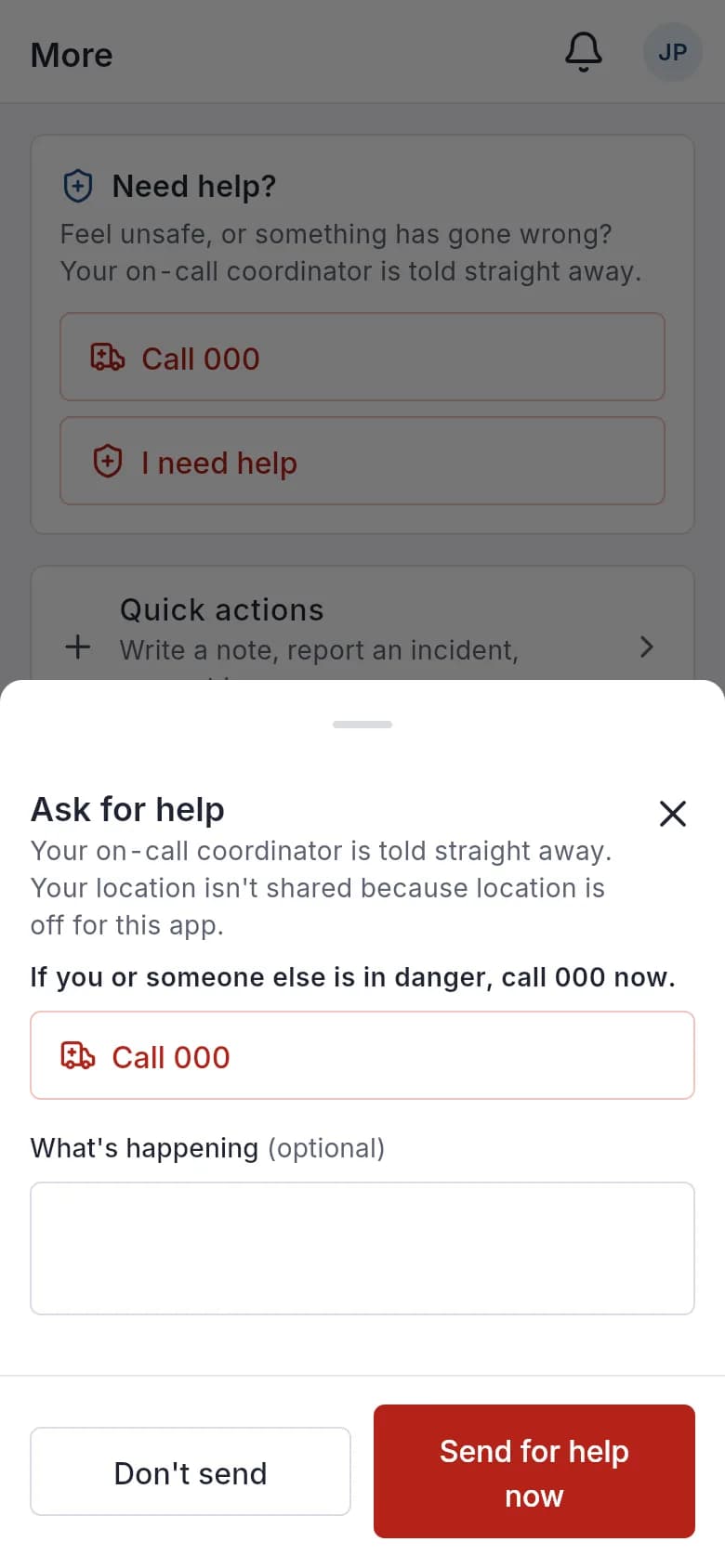
Ask for help: on-call is told straight away. 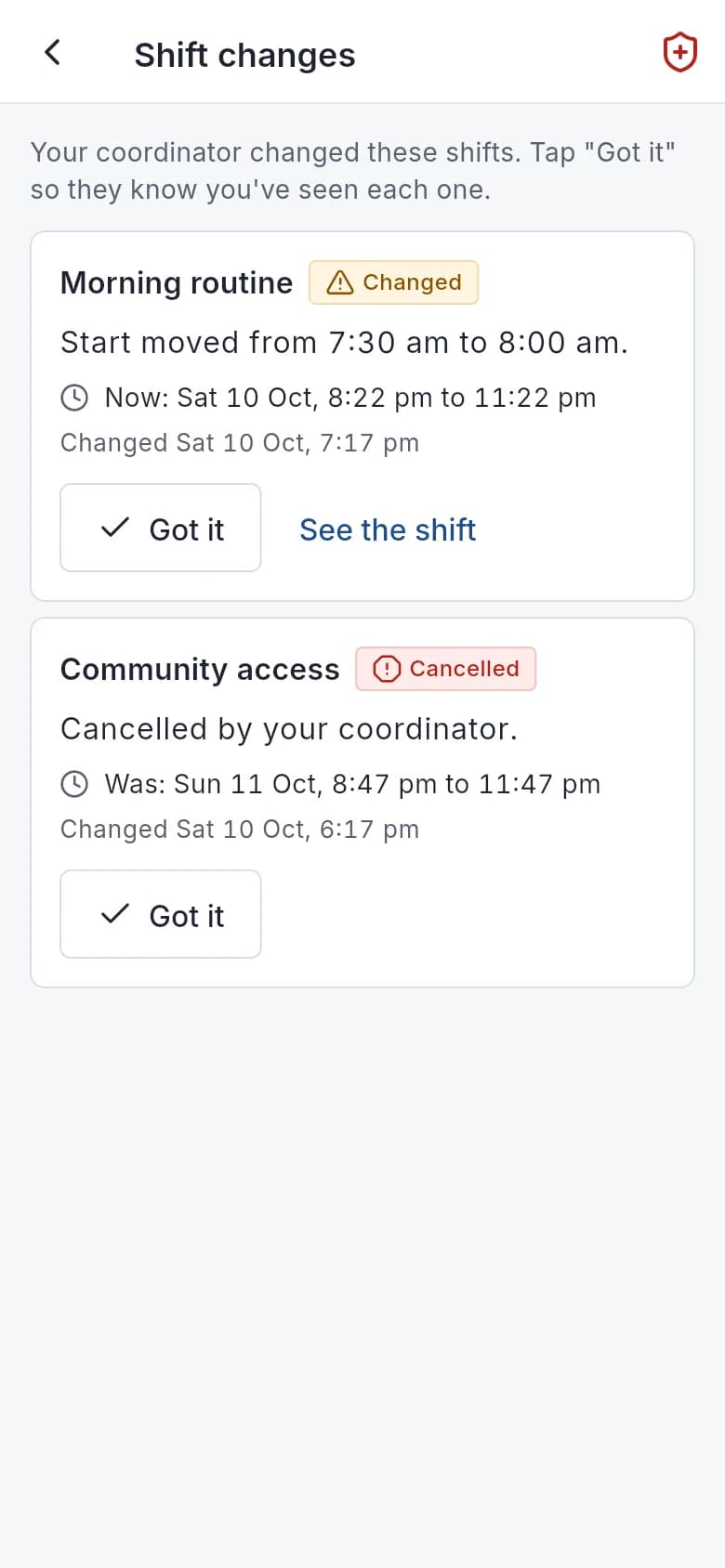
Shift changes the worker confirms with Got it. 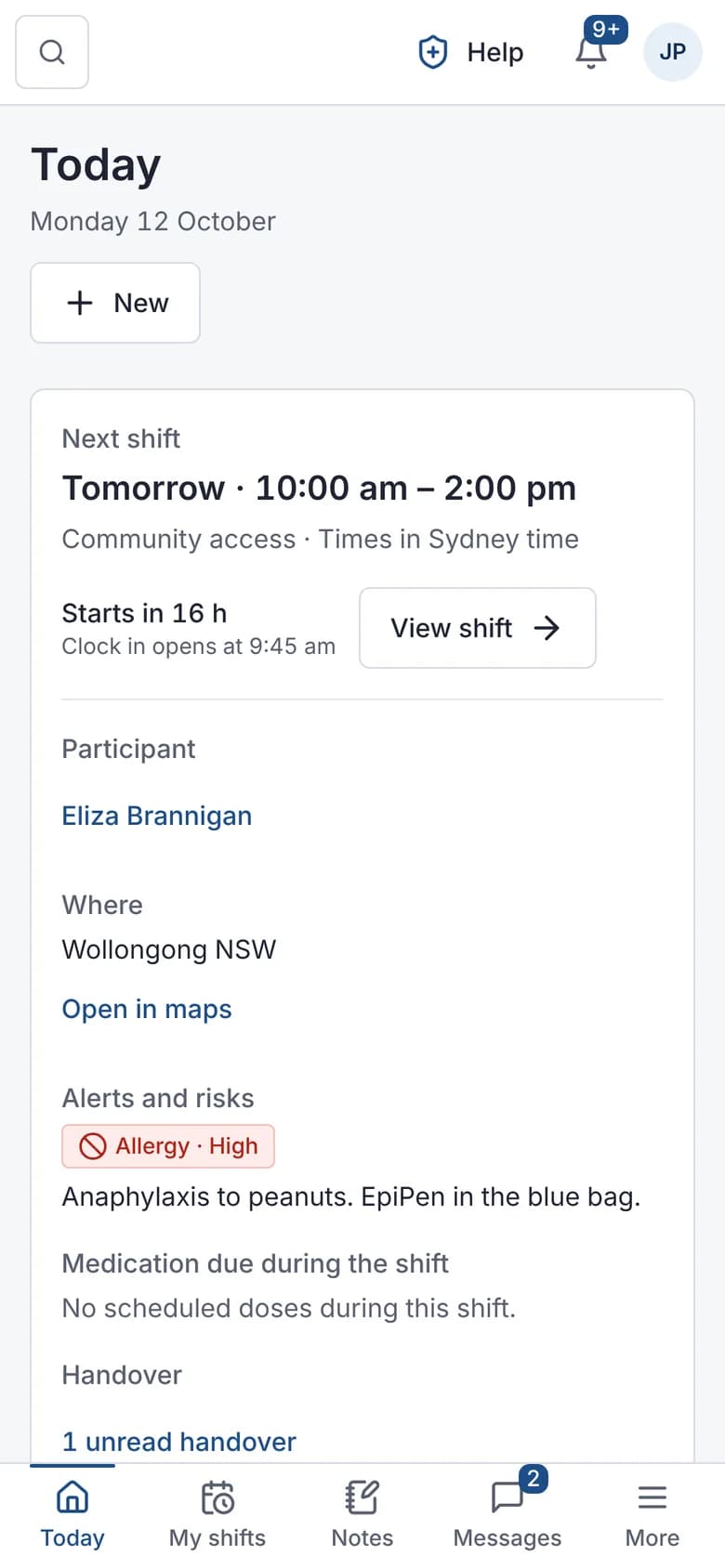
Alerts and risks before arrival.
What it does and doesn't do
It does
- Sends welfare checks when shifts run over or check-ins are missed
- Puts an SOS button on every signed-in screen; holding it for 2 seconds sends a silent alert
- Shares the worker's location with on-call while a help request is open (up to 30 minutes, and the worker can stop it)
- Lets workers set their own check-in timer, from 30 minutes to 4 hours
- Saves help requests without signal and sends them when the phone reconnects
- Tracks acknowledgement of shift changes
It doesn't
- Doesn't call emergency services for the worker; the app offers a "Call 000" button for the worker to tap
- Doesn't track workers' location in the background or during a shift
- Doesn't keep sharing location after the help request closes, after 30 minutes or when the app is closed
Frequently asked questions
Does it use GPS location?
Only at set moments: once at clock-in and clock-out when your organisation uses geofencing, when a worker checks in or answers "Are you OK?", and while a help request is open. During a help request, the location is shared with on-call for up to 30 minutes, only while the app is open, and the worker can stop it. A worker can also use their location for a trip in an expense claim. There is no background or continuous tracking.
Who receives help alerts?
Whoever is on call at that time. If nobody is, the alert goes to your "always" contacts, and otherwise to everyone who can manage the roster.
Is this in the mobile app?
Yes. An SOS button sits in the header of every signed-in screen of the app. Tap it to ask for help, or hold it for 2 seconds to send a silent alert. Welfare checks, the check-in timer and shift changes have their own pages.
Do help alerts respect quiet hours?
No. Help alerts ignore quiet hours so they are never delayed.
How it works
Set who is on call
Choose on-call contacts and their hours. Contacts without an account can get alerts by email or SMS. Text messages go through the SMS gateway Autonomy Care runs for the whole platform, so you don't need your own SMS account.
SOS on every screen
An SOS button sits in the header of every signed-in screen of the app. Tap it to open Ask for help, with Call 000 first and Call on call. Hold it for 2 seconds to send a silent alert, and on-call is asked not to call.
Location only while help is open
While a help request is open, the worker's location is shared with on-call for up to 30 minutes, only while the app is open. The worker can tap "Stop sharing my location", and "I'm safe now" closes the request with a reason.
Check-in timer
On shift, workers can set their own check-in interval, from 30 minutes to 4 hours, or turn it off. A missed check-in is escalated to on-call. Your organisation's interval still applies to lone workers who don't set one.
Welfare checks run in the background
Every 5 minutes, Autonomy Care looks for workers still clocked in well after the shift end, or who missed a check-in, and the app shows a full-screen "Are you OK?" with one "I'm OK" button.
Changes are acknowledged
Workers tap "Got it" on changes to shifts in the next 48 hours, and unacknowledged changes are shown to coordinators.
Who uses it
Support workers
On-call coordinators
WHS and quality leads
Related modules
Attendance and clock-in
Attendance records when workers start and finish each shift. In Autonomy Care, workers clock in and out from the mobile app or the web, with optional geofencing that warns or blocks outside a set radius. Late or out-of-area clock-ins are flagged for review, and you can require a note or participant signature at clock-off.
Incidents and complaints
Registered providers must manage all incidents and notify the NDIS Commission of reportable incidents within set timeframes. Autonomy Care walks workers through a report that starts with safety, tells the on-call coordinator about 24-hour categories, tracks Commission deadlines with alerts, and won't close an incident until the required steps are recorded.
Rostering and timesheets
NDIS rostering software schedules workers against booked supports while checking availability, credentials and plan funding. In Autonomy Care, each shift carries its support item, so the roster, timesheet and invoice stay in step. Templates, open shifts, swaps and private calendar feeds cut down the last-minute phone calls.
See it with your own rosters and plans
Get started, or book a demo and we will walk you through it with your questions.