
Last updated 12 Oct 2026
Module
Attendance and clock-in
Clock-in and clock-out you can check later
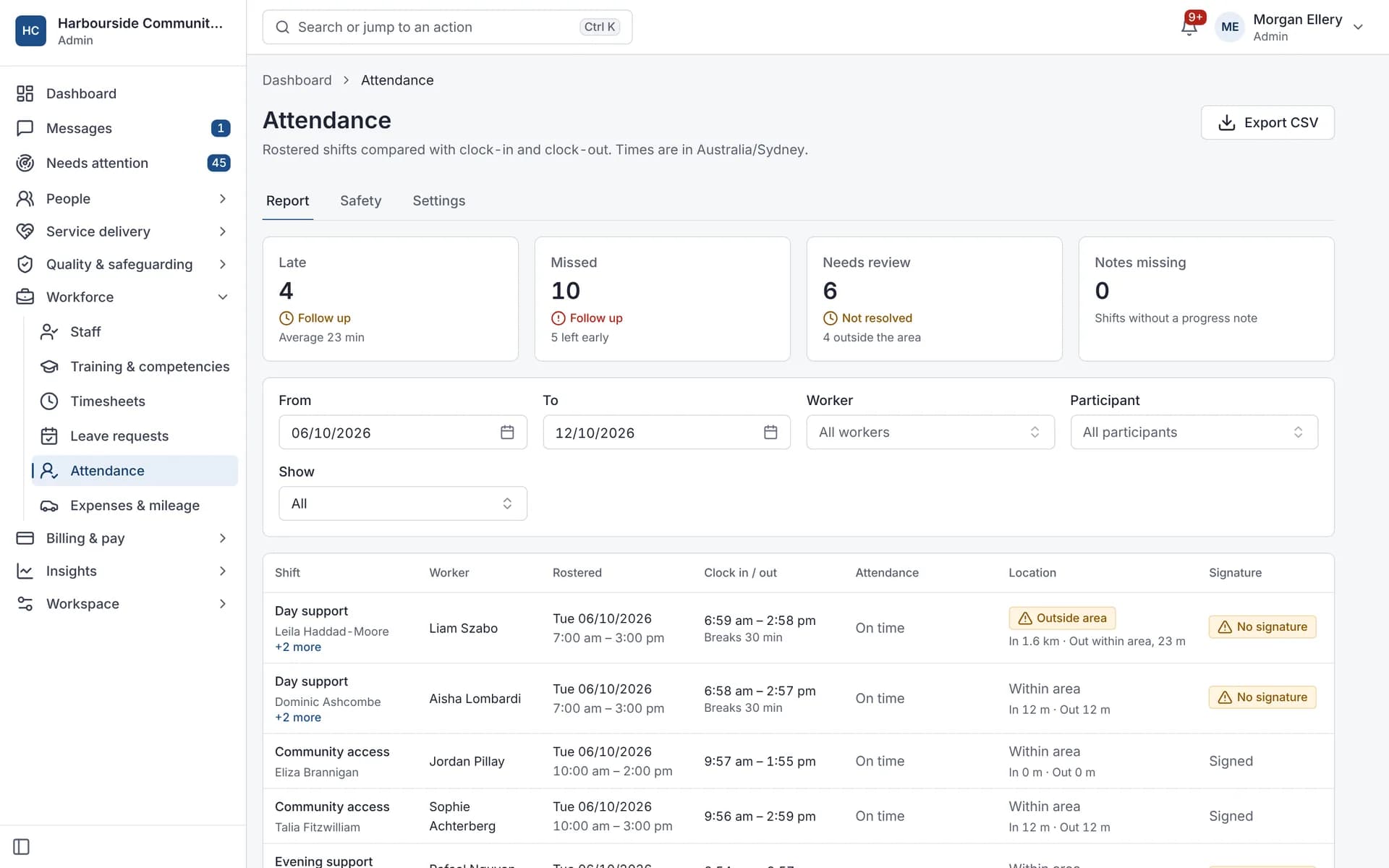
Attendance records when workers start and finish each shift. In Autonomy Care, workers clock in and out from the mobile app or the web, with optional geofencing that warns or blocks outside a set radius. Late or out-of-area clock-ins are flagged for review, and you can require a note or participant signature at clock-off.
Part of Rostering and service delivery.
How does geofencing work?
Your organisation chooses off, warn or block. Warn records the location and flags it for review. Block refuses clock-in or clock-out outside the radius (at least 50 metres) or without a location. The reference point is the shift location, or the participant's address.
Does it track workers during the shift?
No. The app reads the location only at set moments:
- Once at clock-in and once at clock-out, when your organisation uses geofencing
- Once when the worker checks in or answers "Are you OK?", if the phone allows it
- While the worker has a help request open: shared with on-call for up to 30 minutes, only while the app is open, and the worker can stop it
- If the worker taps "use my location" for the end of a trip in an expense claim
There is no background or continuous tracking.
What happens with no phone signal?
The mobile app saves clock-ins and clock-outs on the phone and sends them when it reconnects, each one once. The phone's time is used and the event is marked "recorded offline". The server accepts offline clock events from the last 12 hours and refuses older ones.
The 12-hour limit applies to clock events only. Notes, incident reports and task ticks saved offline are sent whenever the phone reconnects.
What is checked at clock-off?
The app shows only the steps that apply: a progress note for each participant (off, prompt or required), a participant signature (drawn, typed or "unable to sign"), a handover for the next worker, and any custom timesheet fields. Each of these follows your settings.
In the handover, ticking "Incident occurred" opens a pre-filled incident report, and "Medication given" opens Record a dose.
What happens to the timesheet after clock-out?
A timesheet is created and calculated straight away, using your rounding rules, and can be approved automatically if you choose. Approval creates the payroll record and marks the supports ready to invoice. The timesheet PDF is a service record that includes the participant's signature.
Clocking in and out on the phone
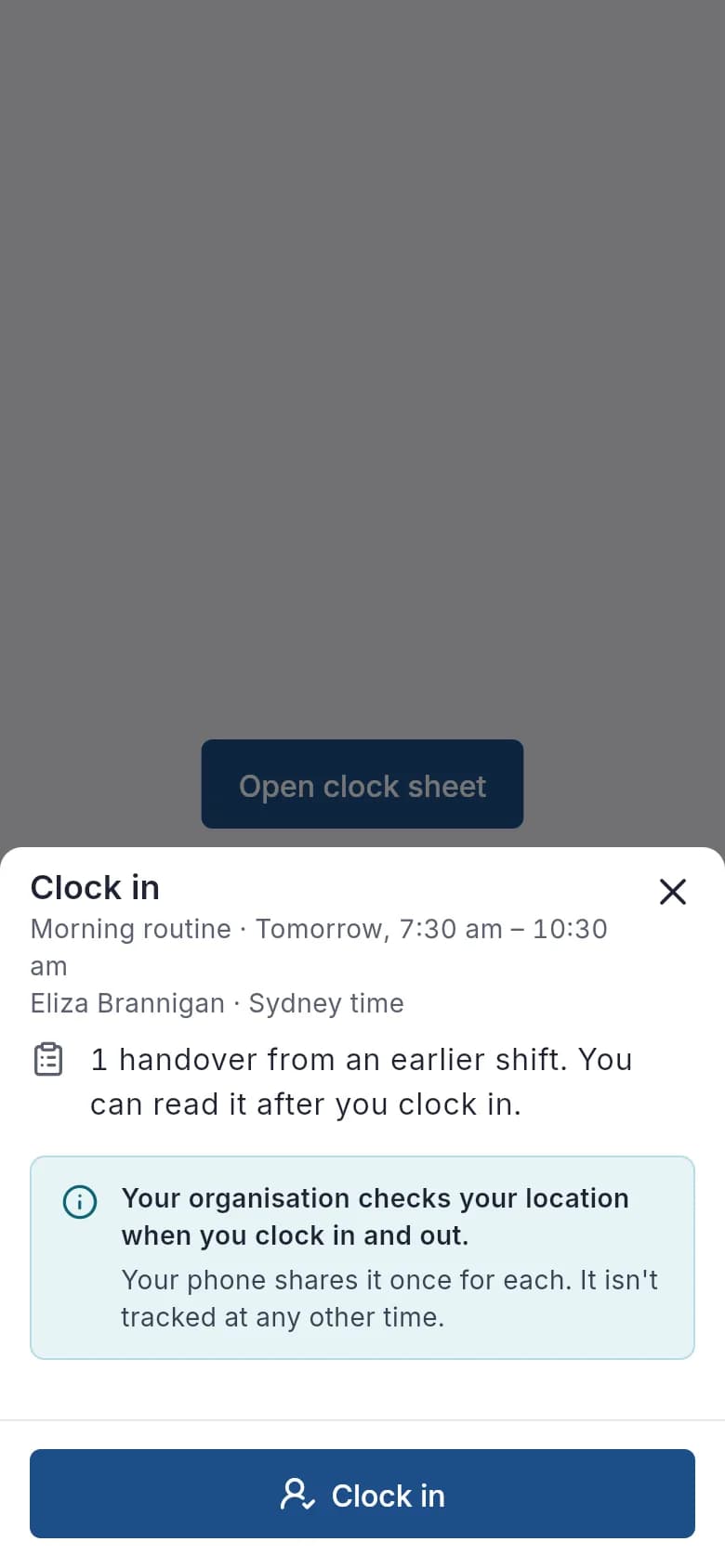
Clock in, with the location check explained. 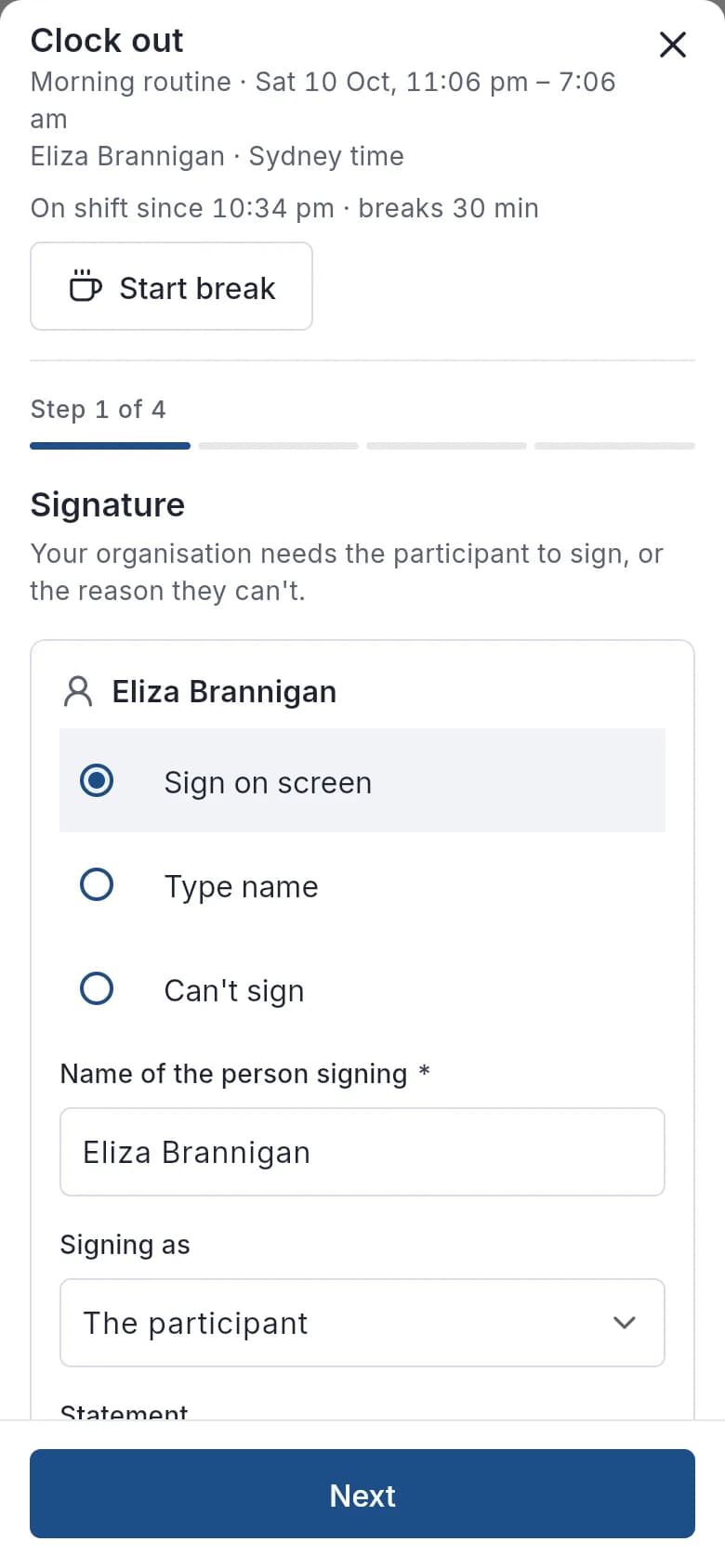
Clock out: signature, note, details, handover. 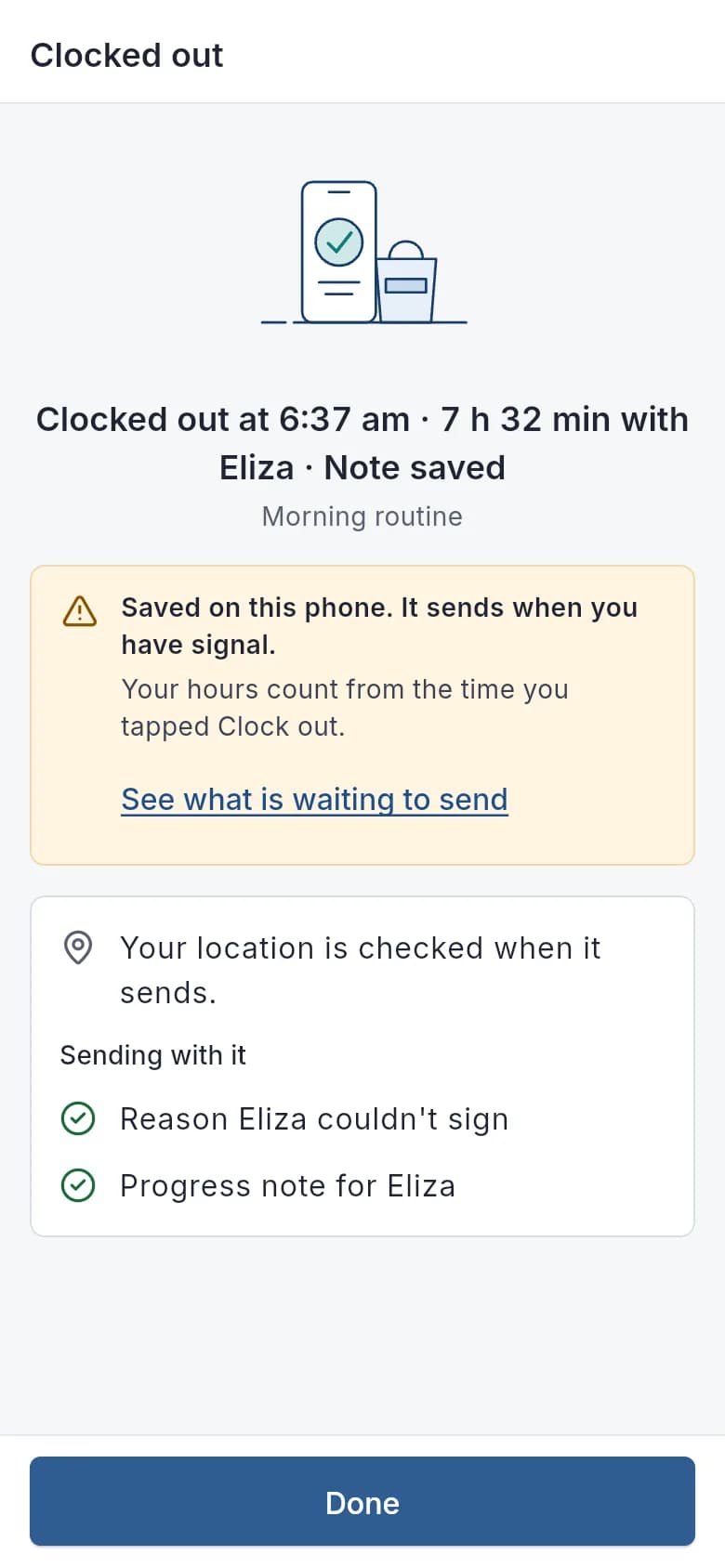
No signal: saved on the phone, sent later. 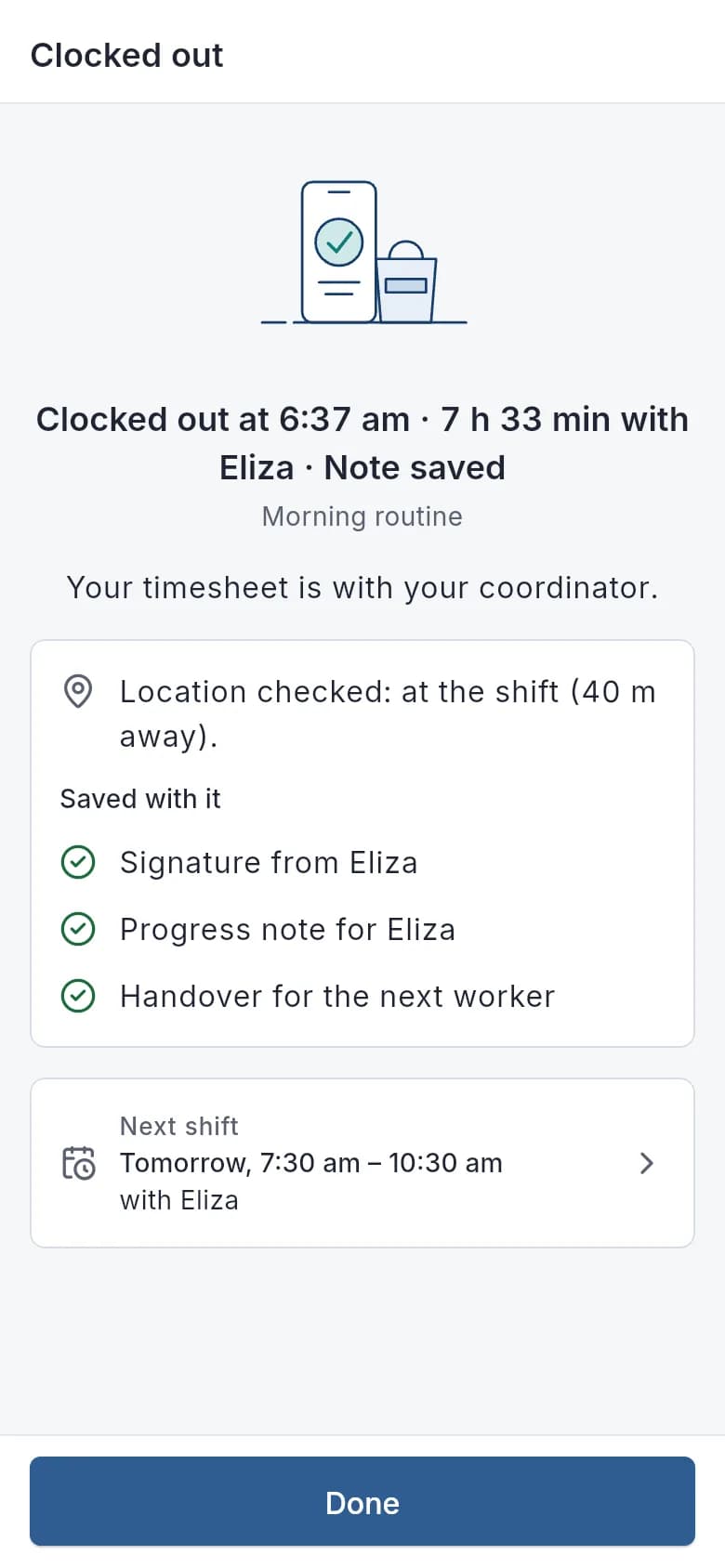
Everything saved with the shift.
What it does and doesn't do
It does
- Records clock-in, clock-out and breaks
- Applies optional geofencing in warn or block mode
- Flags late and out-of-area clock events for review
- Compares planned and actual breaks
- Saves clock events without signal and sends them later (accepted within 12 hours)
It doesn't
- Doesn't track location in the background or continuously during a shift
- Doesn't clock workers out automatically when they forget
- Doesn't replace your own policies on location consent; tell workers how it is used
Frequently asked questions
Can geofencing be turned off?
Yes. The modes are off, warn and block, set by your organisation.
Does clock-in work without signal?
Yes, in the mobile app. Clock events are queued on the phone and sent when it reconnects, as long as it is within 12 hours.
Can we download timesheets?
Yes. Timesheets can be downloaded as PDF, and attendance exceptions can be exported from the review list.
Can participants sign at clock-off?
Yes. You can ask for a participant signature when the worker clocks out.
How it works
Clock in
The worker clocks in on the shift. If geofencing is on, the phone sends its location once, at that moment only. The app explains why before the phone asks for permission.
Record breaks
Workers start and end breaks on the shift page. Planned and actual breaks are compared, and a difference over the tolerance (10 minutes by default) is flagged.
Clock out
The app shows only the steps your settings need: a progress note for each participant, a participant signature, a handover and any custom timesheet fields. A timesheet is created when the worker clocks out.
Review exceptions
Clock events outside the geofence or late clock-ins appear in an attendance review list to acknowledge or resolve with a note.
Who uses it
Support workers
Rostering coordinators
Payroll teams
Related modules
Rostering and timesheets
NDIS rostering software schedules workers against booked supports while checking availability, credentials and plan funding. In Autonomy Care, each shift carries its support item, so the roster, timesheet and invoice stay in step. Templates, open shifts, swaps and private calendar feeds cut down the last-minute phone calls.
Worker safety
Many support workers work alone in homes and the community. In the Autonomy Care app, an SOS button sits on every signed-in screen: tap it to call 000 or on-call, or hold it for 2 seconds to send a silent alert. Welfare checks, a check-in timer the worker sets, running-late notices and shift change acknowledgements cover the rest.
Progress notes
A progress note records what support was delivered, what was observed and how it relates to the participant's goals. In Autonomy Care, workers write notes on the shift with short prompts, quick notes and dictation. The note coach checks each note against plain rules and current goals, and Signals flag missing notes before invoicing.
Payroll and the SCHADS Award
Autonomy Care calculates timesheet pay under the SCHADS Award (MA000100) for the disability and home care streams. It covers weekend and public holiday rates, overtime, shift loadings, minimum engagement, broken shifts and sleepovers, flags cases for a person to decide, and exports pay runs to payroll. Have a payroll specialist check your setup.
See it with your own rosters and plans
Get started, or book a demo and we will walk you through it with your questions.