
Last updated 12 Oct 2026
Module
Incidents and complaints
Incident and complaints management for NDIS providers
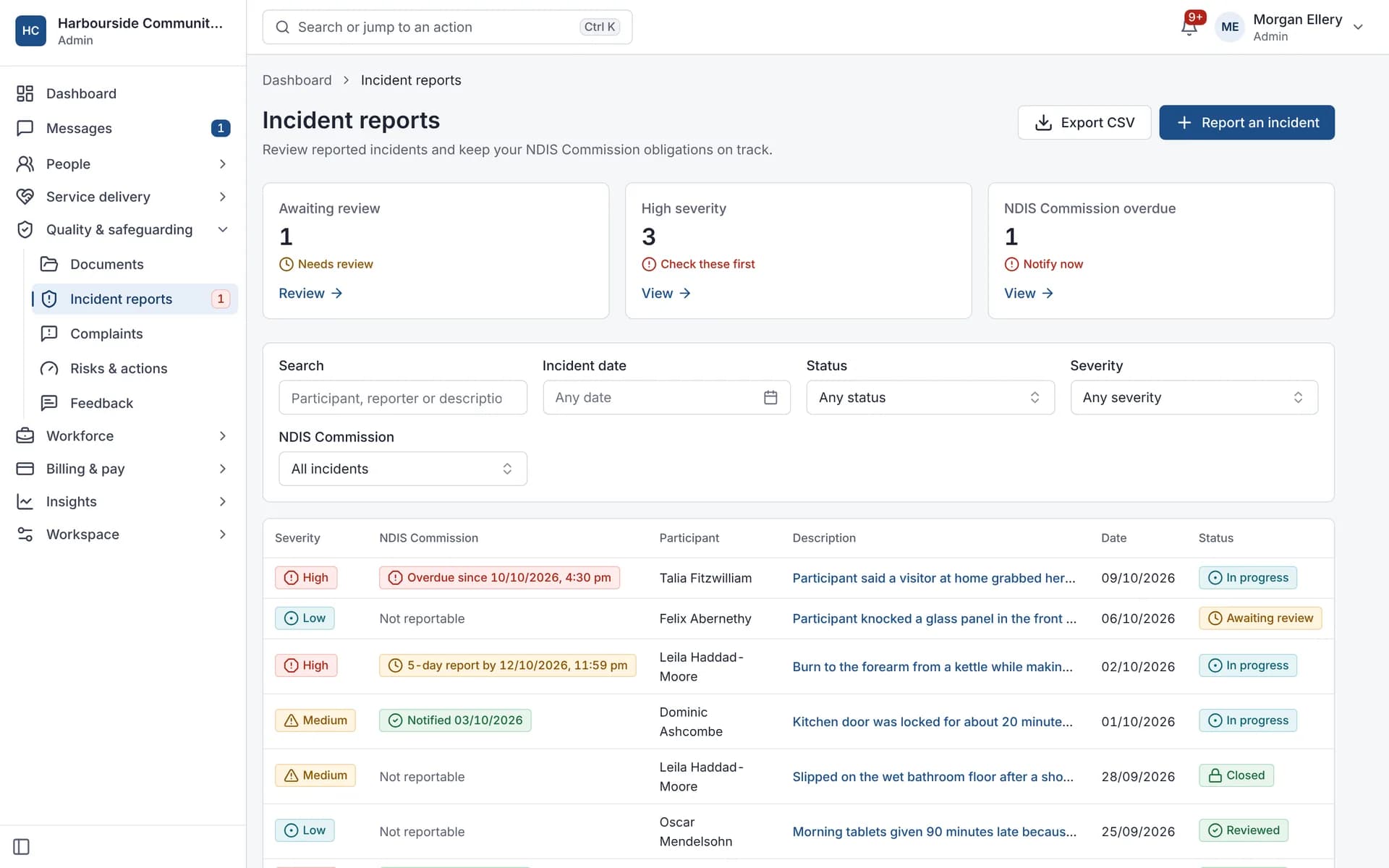
Registered providers must manage all incidents and notify the NDIS Commission of reportable incidents within set timeframes. Autonomy Care walks workers through a report that starts with safety, tells the on-call coordinator about 24-hour categories, tracks Commission deadlines with alerts, and won't close an incident until the required steps are recorded.
What counts as a reportable incident?
Reportable incidents include a death, serious injury, abuse or neglect, unlawful sexual or physical contact, sexual misconduct and the unauthorised use of a restrictive practice. Check the current list with the NDIS Commission. Our incident reporting timeframes guide explains more.
How do workers report an incident from the app?
- Step 1 asks "Is anyone hurt or in danger now?" If the answer is yes, Call 000 and Call on call move to the top.
- The worker picks the incident type, which is mapped to a reportable category, and answers "Was a restrictive practice used?" and questions about harm.
- The description and harm can be dictated. Photos, files and a body map (front and back, with a note) can be added.
- For 24-hour categories, the worker sees that their coordinator has 24 hours to report it, and the on-call coordinator is told.
- With no signal, the report and its photos are saved on the phone and sent later. The worker can edit it until review starts.
Workers can also lodge incidents, complaints and feedback from the Frontline Center in a browser. The office web view doesn't show the body map or the answer to the first question yet.
How are Commission deadlines tracked?
Once an incident is flagged reportable, Autonomy Care calculates the notification deadline (24 hours for most categories) and the 5-business-day report, skipping public holidays. Reviewers get alerts before and after each deadline. These follow the NDIS Commission's timeframes: 24 hours for most categories, and 5 business days for the 5-day form and for an unauthorised restrictive practice that caused no harm.
How are complaints handled?
Complaints and feedback have a status, an owner, a related participant and an outcome. Targets are to acknowledge within 1 business day and aim to resolve within 21 days. Families can lodge feedback and complaints from the Family portal.
What will an auditor want to see?
Usually your incident and complaint registers, how each was reviewed and closed, corrective actions and your risk register. These can be exported as CSV.
From the shift to the Commission
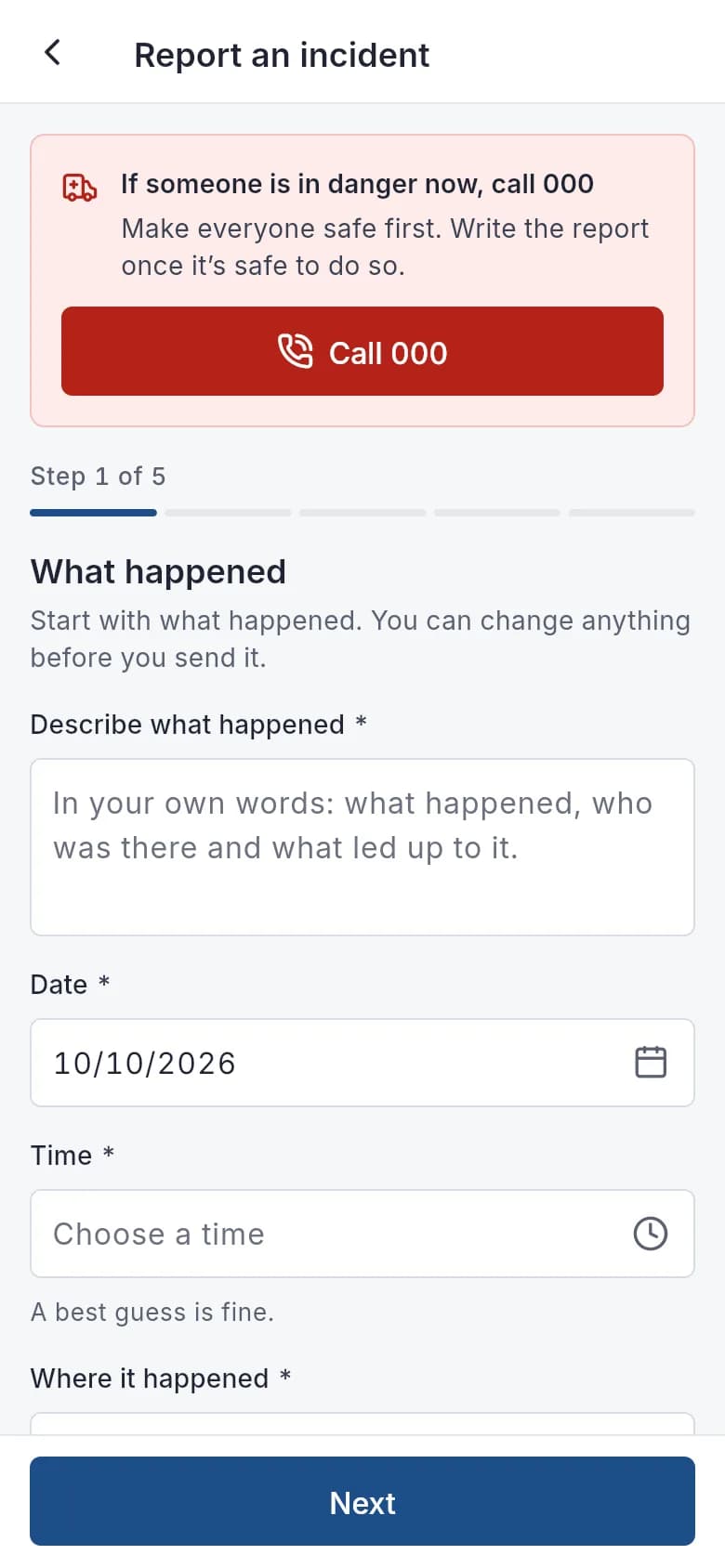
In the app: the report starts with safety. 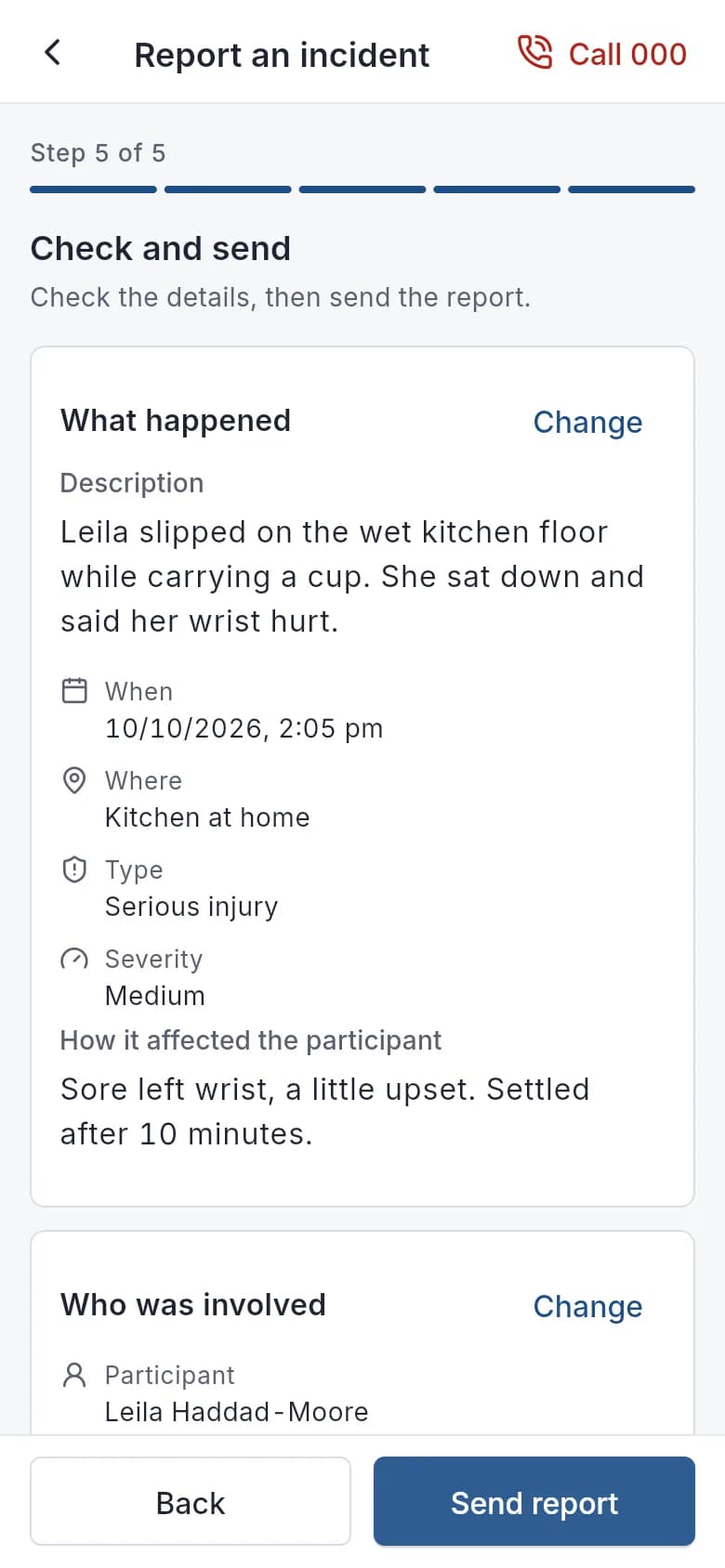
Check the report, then send it. 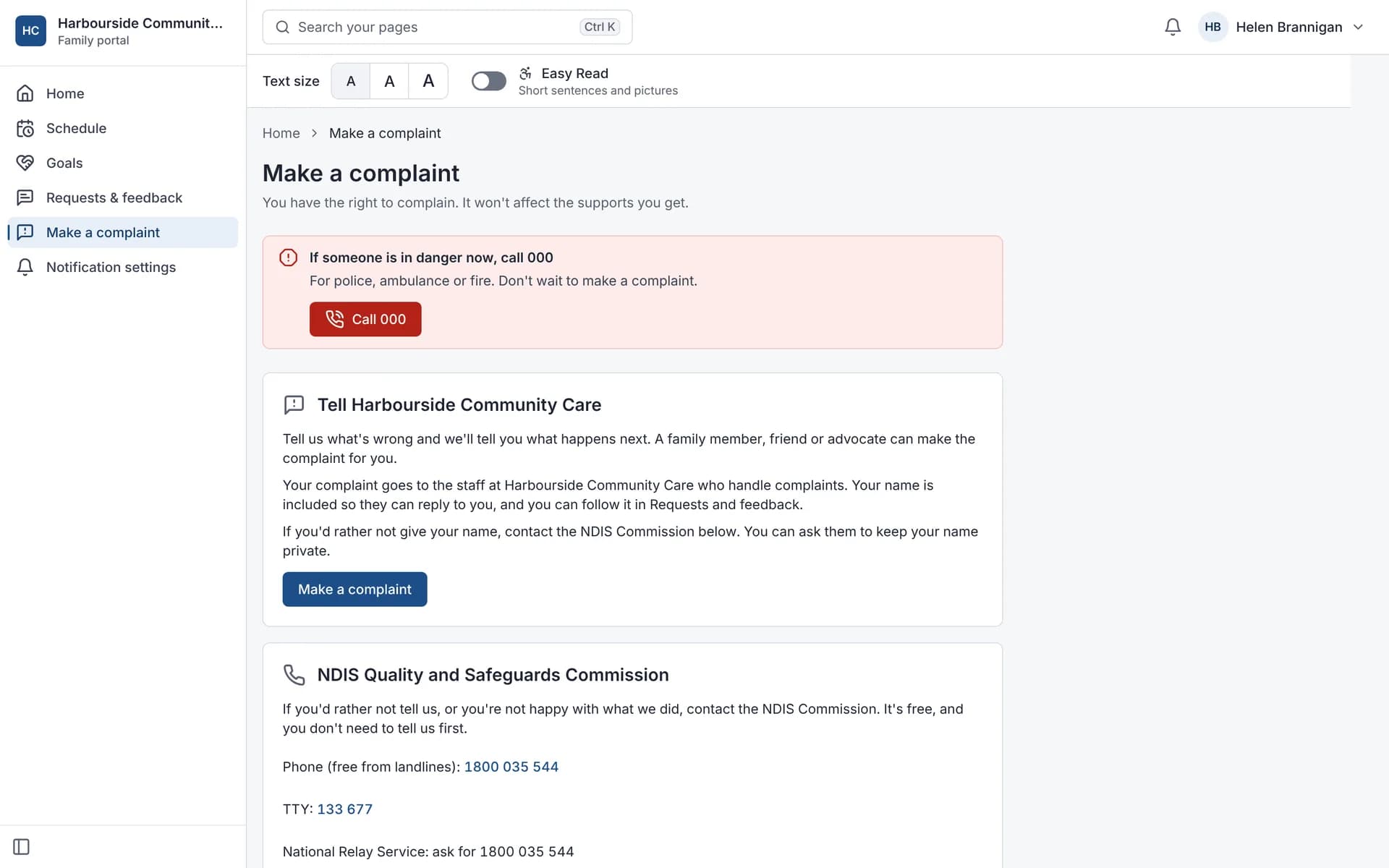
Families can raise a complaint from the Family portal.
What it does and doesn't do
It does
- Lets workers lodge incidents, complaints and feedback from the shift
- Starts worker reports with "Is anyone hurt or in danger now?" and tells on-call about 24-hour categories
- Saves incident reports with photos when there is no signal
- Calculates NDIS Commission deadlines and alerts reviewers
- Links corrective actions and keeps a 5x5 risk register
- Exports incident, complaint and corrective action registers as CSV
- Encrypts incident narratives and complaint details at field level
It doesn't
- Doesn't notify the NDIS Commission for you; you notify the Commission and record the date and reference
- Doesn't decide whether an incident is reportable; your reviewers do
- Doesn't show the body map in the office web view yet; it is in the app's report
Frequently asked questions
Does Autonomy Care notify the NDIS Commission for me?
No. You notify the Commission through its own channels. Autonomy Care calculates the deadlines, alerts your reviewers, and records when you notified and the Commission's reference.
Can I attach photos and documents?
Yes. Incident reports accept file attachments, from the web and the mobile app.
Is there a risk register?
Yes. Risks are rated on a 5x5 likelihood and consequence matrix, with an owner, controls and a review date. Daily reminders go out when a review date arrives.
Can I export incidents for an audit?
Yes. The incident register, complaints register and corrective actions can be exported as CSV.
Can a progress note trigger an incident report?
Yes. If a note mentions a risk word, such as a fall, the note coach prompts the worker to file an incident report, and Signals flag risk words with no matching report.
How it works
Report it from the shift
In the app, the report starts with "Is anyone hurt or in danger now?" Yes puts Call 000 and on-call at the top. The worker then picks the incident type, answers whether a restrictive practice was used and about harm, and can dictate the description, add photos and files, and mark injuries on a body map.
Tell on-call about 24-hour incidents
If the incident type maps to a reportable category with a 24-hour timeframe, the worker sees "Your coordinator has 24 hours to report this" and the on-call coordinator is told.
Flag reportable incidents
Reviewers mark reportable incidents and their category. Deadlines are calculated in business days, skipping public holidays.
Get deadline alerts
Reviewers are alerted 4 hours before a deadline and again if it passes, and record the notification date and Commission reference.
Close it properly
Corrective actions are linked and tracked. An incident can't be closed until it is reviewed, required notifications are recorded and actions are done.
Who uses it
Quality and safeguarding leads
Team leaders
Support workers
Related modules
Document Centre
The Document Centre holds your forms, registers and policies. Autonomy Care includes a library of 71 ready-made forms you can adopt and change, template versions with approval and review dates, form records with signatures and PDF export, registers, policy acknowledgements with reminders, and a document control register that shows what needs attention.
Progress notes
A progress note records what support was delivered, what was observed and how it relates to the participant's goals. In Autonomy Care, workers write notes on the shift with short prompts, quick notes and dictation. The note coach checks each note against plain rules and current goals, and Signals flag missing notes before invoicing.
Worker safety
Many support workers work alone in homes and the community. In the Autonomy Care app, an SOS button sits on every signed-in screen: tap it to call 000 or on-call, or hold it for 2 seconds to send a silent alert. Welfare checks, a check-in timer the worker sets, running-late notices and shift change acknowledgements cover the rest.
Training and competencies
Training and competencies keeps a record of each worker's competencies, evidence and expiry dates, shown in a training matrix. In Autonomy Care you can require competencies for a participant or a support item, and the roster checks them when you assign a shift, using the advisory, reason or block policy you choose.
See it with your own rosters and plans
Get started, or book a demo and we will walk you through it with your questions.