
Last updated 12 Oct 2026
For support workers
Your shifts, your notes and your pay in one app, and help one tap away
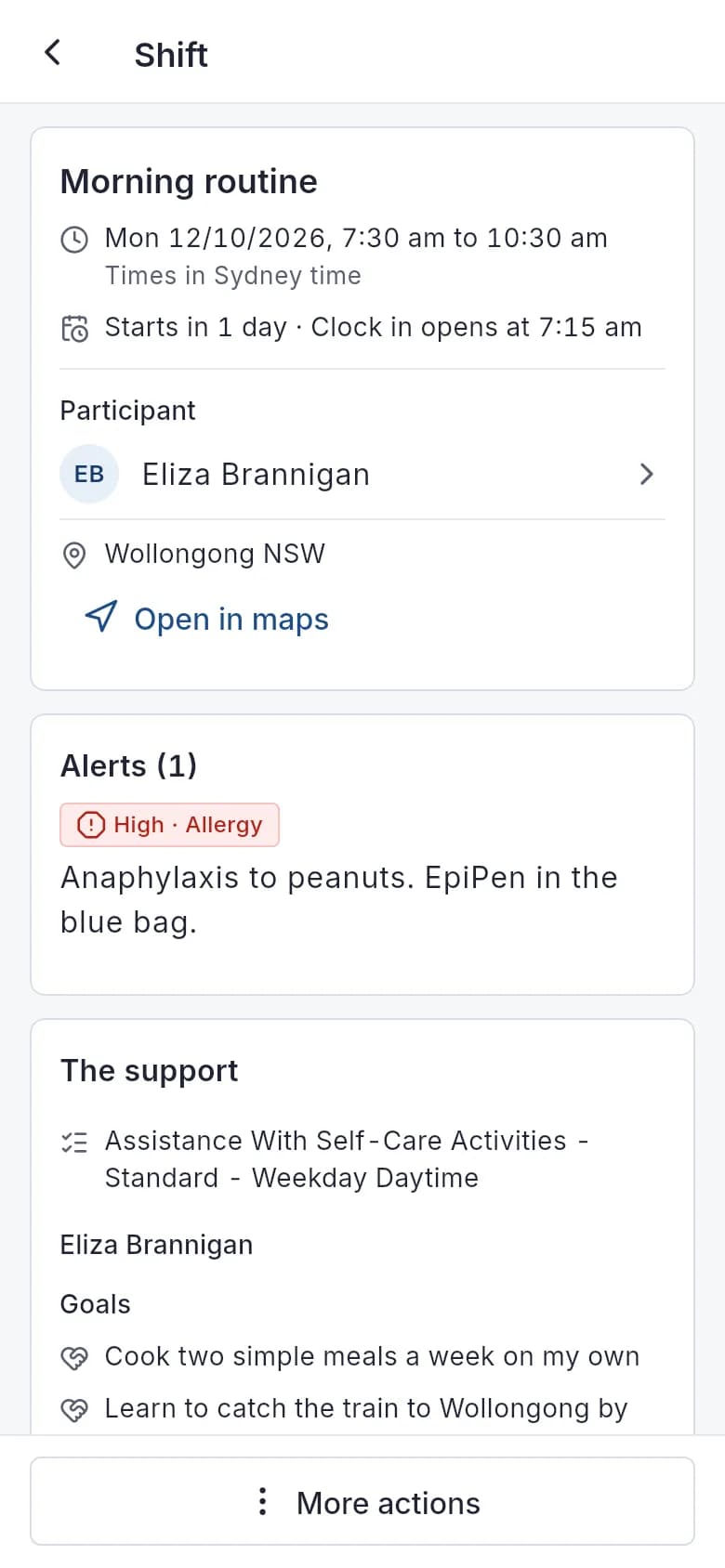
The Autonomy Care app is where support workers see their shifts, clock in and out, write progress notes, report incidents and ask for help. Clock-ins and clock-outs save on the phone when there's no signal and send later. Workers sign in through their employer, so ask your provider whether they use Autonomy Care.
Safety
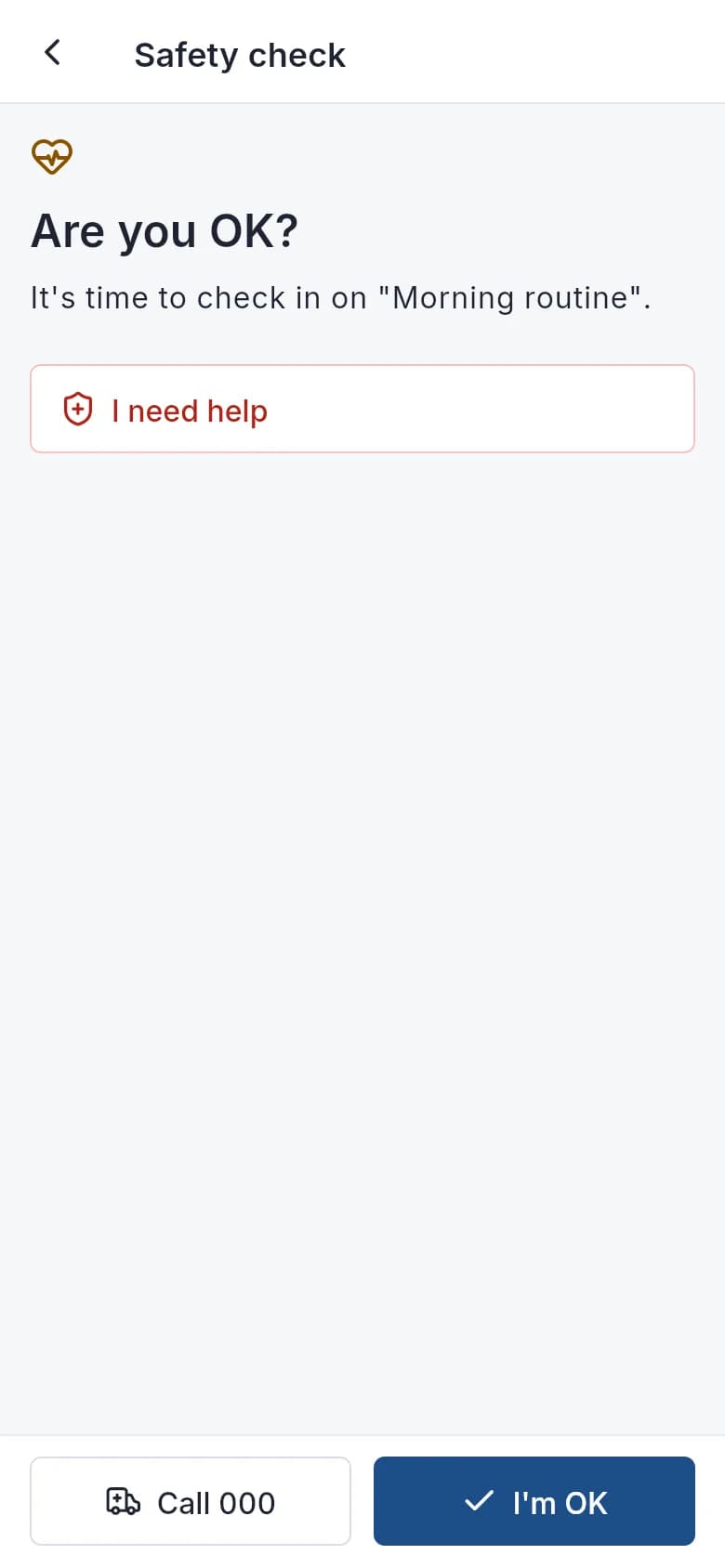
Help one tap away when you're on your own
If your clock-out is overdue or you miss a check-in, the app asks "Are you OK?". If you don't answer, or tap "I need help", your on-call coordinator is told straight away.
- A "Call 000" button on every help screen
- Your location is shared when you clock in or out, and while you've asked for help
- Lock the app with your phone's fingerprint or face unlock
- Notifications on your lock screen never show participant details
Your roster
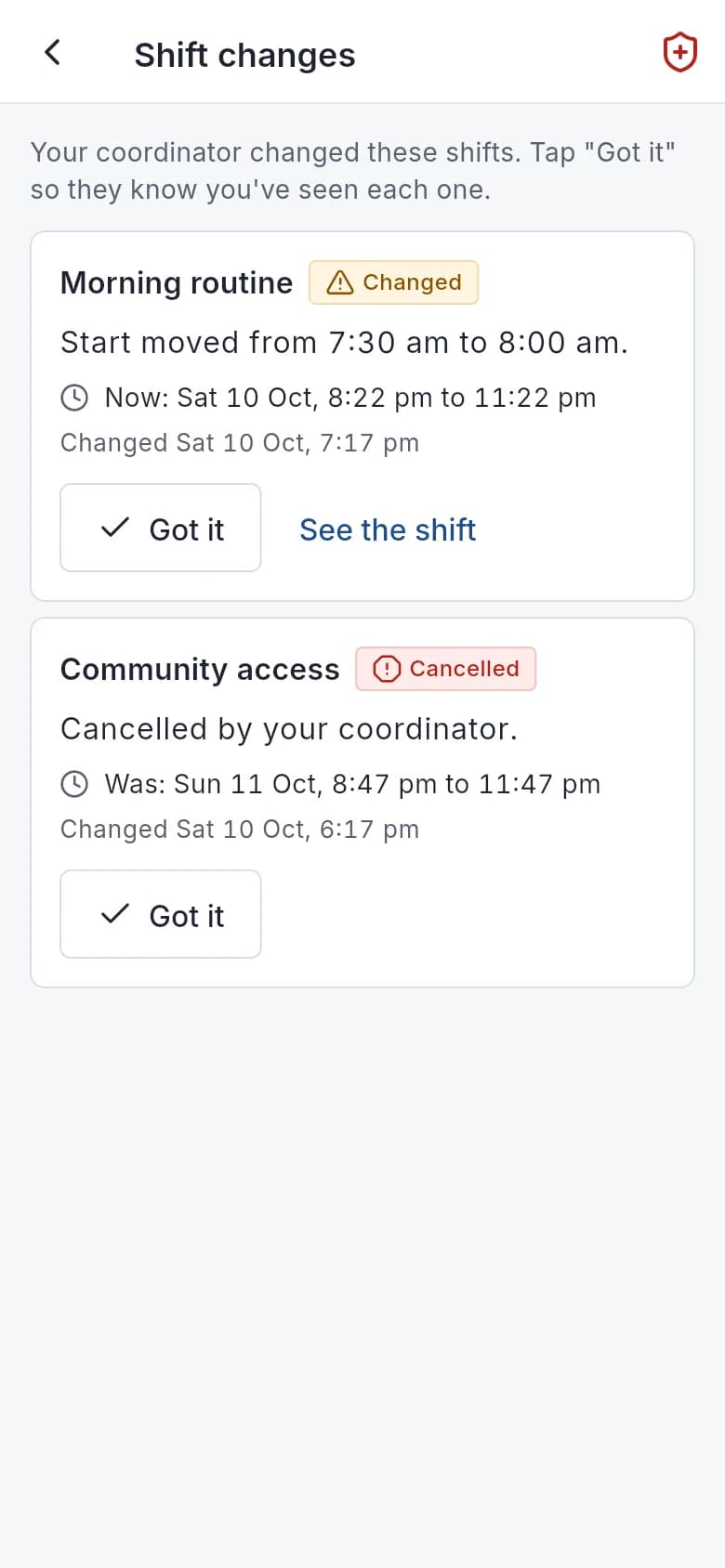
Rosters you can trust
When a shift changes close to the day, you see what changed and tap "Got it". Your coordinator can see who has seen it.
- Ask for open shifts you're eligible for
- Can't work a shift? Offer it, swap it or tell your coordinator
- Running late? Tell your coordinator in one tap
- See the address, alerts and goals before you arrive
Notes
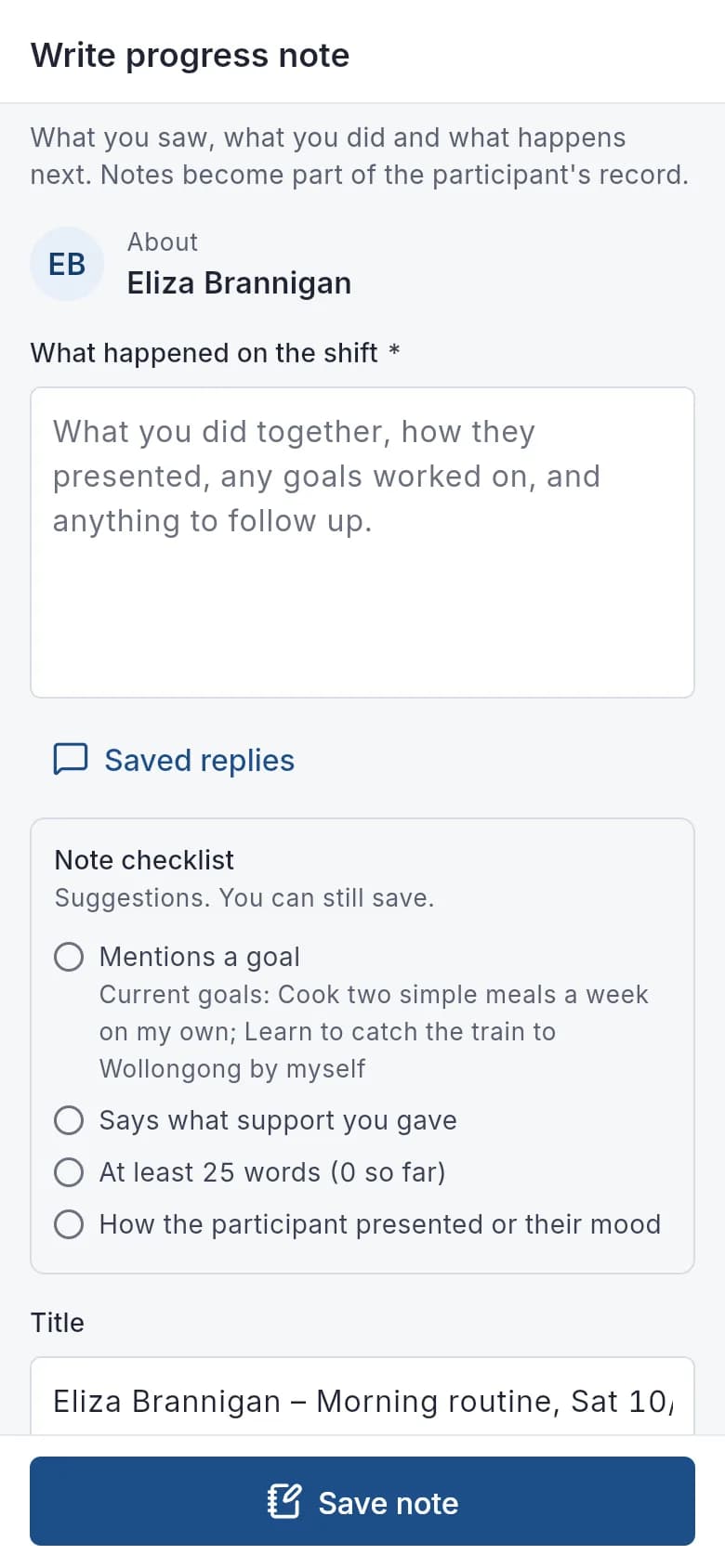
Write the note before you clock out
The progress note is part of clocking out, so it's written while the shift is fresh, not at home afterwards.
- A plain checklist: a goal, the support you gave, enough words to be useful
- The checklist follows fixed, written rules, not AI
- Notes can't be changed later; a correction is added with a reason, so your record stands
- Report an incident in 5 steps, starting with safety
Pay
Pay you can check
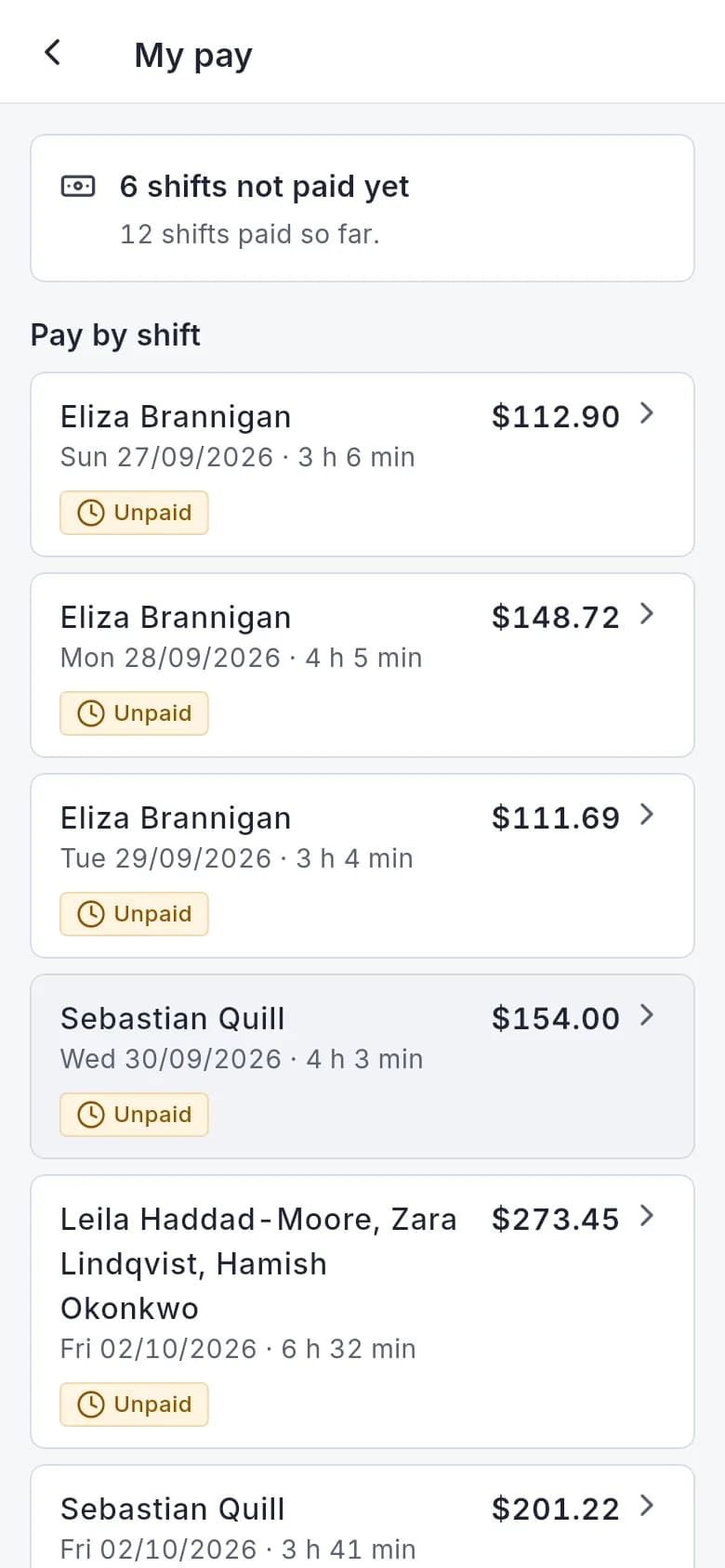
See your hours and pay for each shift, and whether it has been paid yet.
- Timesheet detail: clock times, breaks, signature and the pay lines for that shift
- Payslips in the app
No signal
Poor signal won't cost you hours
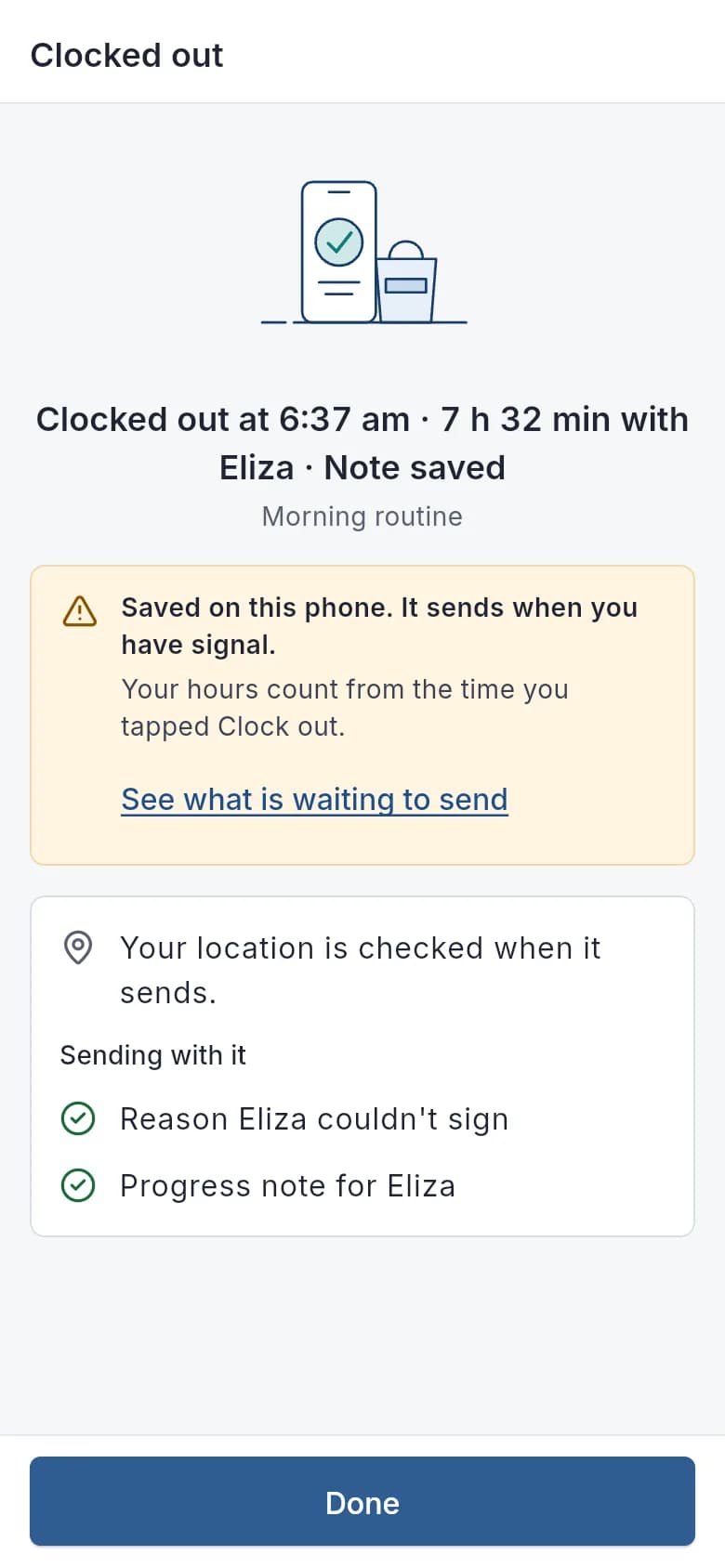
With no signal, clocking in or out is saved on your phone with the time you tapped, and sent when you're back online. Your hours count from when you tapped.
- Your coordinator sees it was saved on the phone
- Nothing to re-enter when you're back online
How do I start using it?
You sign in through your employer, so there's no sign-up. Ask your provider whether they use Autonomy Care.
Frequently asked questions
Does it work on phones for support workers?
Yes. Support workers use the Autonomy Care mobile app for shifts, clock-in, notes, medication, incidents and safety alerts.
What works in the app without signal?
These save on the phone and send themselves when it reconnects, once each: clock-ins and clock-outs, progress notes with photos, note corrections, incident reports with photos, help requests, "I'm OK" answers, "Got it" on shift changes and task ticks. Clock events must reach us within 12 hours. Medication records, messages, leave and expense claims need signal.
When does the app read a worker's location?
Only at set moments: once at clock-in and once at clock-out when your organisation uses geofencing, once when a worker checks in or answers "Are you OK?" (if allowed), while a help request is open (up to 30 minutes, and they can stop it), and for an expense trip if they tap "use my location". Never in the background.
What participant information can support workers see?
Workers see the care information they need on shift: support needs, goals, medicines, alerts, contacts and handovers for the participants they support. They don't see plans, funding or plan managers. The NDIS number stays hidden until they tap Show, and search previews never show note or message text.
Is a worker's voice recorded when they dictate a note?
Autonomy Care doesn't record or keep any audio. Dictation uses the phone's own speech recognition, set to Australian English, and only the words go into the note. Depending on the phone, Apple or Google may process the audio to turn it into text. Workers who'd rather not can type instead.
How does a worker send a silent alert?
Hold the SOS button in the app's header for two seconds. On-call is alerted and asked not to call back. A worker can also choose "I can't talk" in Ask for help. With no signal, the alert is saved with the time it was pressed and sends itself, and Call 000 stays on screen.
Can workers use the app with large text or a screen reader?
Yes. The app is tested at 200% text size, buttons are at least 48dp, colours are checked against WCAG 2.2 AA, it follows the phone's dark mode and reduce motion settings, and controls have screen-reader labels. We build to WCAG 2.2 AA but don't claim certification. Tell us about any barrier through our accessibility statement.
Ask your provider about Autonomy Care
Your employer sets up your account. If they don't use it yet, they can book a demo.